
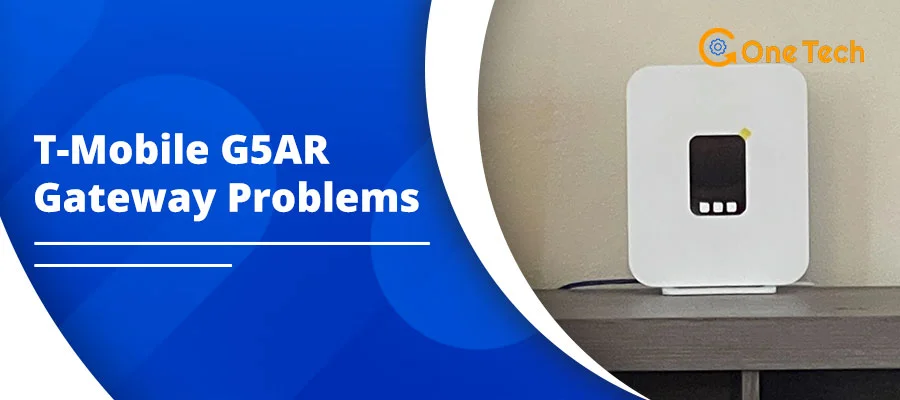
If you recently signed up for T-Mobile Home Internet and got the G5AR gateway, you’re probably impressed — until something goes wrong. random disconnects, slow uploads, or an ‘X’ on the LCD. An “X” on the LCD screen. You’re not alone.
T-Mobile G5AR gateway problems are common across forums, Reddit, and T-Mobile communities. Many can be fixed with these steps
This guide covers the 9 most common G5AR issues and exactly how to fix them.
By [Michael Carter], T-Mobile Home Internet tester since 2025.
Before You Start
Who this guide is for: T-Mobile G5AR users with common connectivity issues. If your gateway shows no power or physical damage, contact support first.
Safety note: Follow T-Mobile’s guidelines via the T-Life app. Avoid opening the device to prevent warranty issues.
When to stop: If issues persist after these steps, use the T-Life app for support or request a replacement.
What Is the T-Mobile G5AR Gateway?
The G5AR is T-Mobile’s 5G Home Internet gateway available on the Amplified plan since July 2025. It’s built by Arcadyan and powered by the MediaTek T830 chipset, a premium platform that supports 5G speeds up to 7Gbps and Wi-Fi 7 for compatible devices.
Compared to the older G4AR, the G5AR is improved in terms of faster upload speeds, lower latency, and Wi-Fi 7 support that future-proofs your home network.
The G4AR had external antenna ports right on the bottom of the unit — a beloved feature that helped users in weak signal areas boost their connection easily. The G5AR does not have external antenna ports.
Quick Troubleshooting Table
Before diving deep, check this table first. It covers the most common symptoms and the fastest fixes.
| Symptom | Probable Cause | Instant Fix |
| “X” on LCD screen | No SIM / no signal | Reseat SIM, move near window |
| Wi-Fi keeps disconnecting | DFS channel conflict | Split bands via T-Life app |
| Overheating / random reboots | Poor airflow, high power draw | Elevate unit, add USB fan |
| Slow upload speeds | Tower congestion/band issue | Reposition, switch to 5GHz |
| VPN not working | Double NAT / MTU mismatch | Adjust MTU, use bridge mode |
| Internet drops for all devices | Firmware update in progress | Avoid rebooting overnight during potential updates |
Fastest Fixes First
Start here for Most issues: Power cycle (unplug 60s), check T-Life app for updates, move near window.
The 9 Most Common T-Mobile G5AR Gateway Problems (And How to Fix Them)
Problem 1: Wi-Fi 7 & DFS Channel Instability
The G5AR uses Wi-Fi 7, which supports 320MHz-wide channels and a feature called MLO (Multi-Link Operation). But many older devices can’t connect to DFS (Dynamic Frequency Selection) channels. When the G5AR locks onto one, those devices get dropped.
Fix:
- Open the T-Life app and split your 2.4GHz and 5GHz networks into separate SSIDs
- Connect older devices to 2.4GHz only
Problem 2: Internet Drops for All Devices at Once
This is one of the most frustrating G5AR problems. Everything loses connection simultaneously — phones, laptops, smart TVs, even hardwired ethernet devices.
Possible causes: firmware bug, overheating, or brief tower-side congestion.
Fix:
- Power cycle the gateway: unplug it, wait 60 seconds, plug back in
- If it keeps happening, connect a separate router via ethernet and disable the G5AR’s built-in Wi-Fi (more on this in the Expert Fix section below)
Problem 3: Overheating and Random Reboots
Heat buildup is common, especially in enclosed spaces or on carpet.
When the device gets too hot, it throttles performance or reboots itself. This is called thermal throttling.
Fix:
- Keep the gateway off the floor and away from enclosed shelves
- Point a small USB fan at the base of the unit — many users report this alone eliminates random reboots
- Never place it in direct sunlight or near a heat vent
Problem 4: No External Antenna Port
This is the biggest design complaint about the G5AR. The G4AR had two external antenna ports on the bottom. Plug in a MIMO antenna, point it at the nearest tower, and get dramatically better speeds.
The G5AR has no external ports. Its 8 U.FL antenna connections are buried inside the device.
Fix:
- Official first: Use T-Life app placement tool + elevate near window for better signal.
- Enclosure option: Outdoor weatherproof enclosure (e.g., Waveform) to relocate whole unit outside.
Safety note: No internal mods—voids warranty. Stick to official T-Life tools/support. [T-Mobile Warranty]
If 3+ bars signal, no changes needed.
Problem 5: Weak Signal and Poor Placement
Even with the best hardware, a bad location kills performance. The G5AR pulls its internet from a cell tower — so physical placement matters more than with cable or fiber.
Fix:
- Place the gateway near a window, on an upper floor if possible
- Elevate it on a shelf — never put it on the floor
- Aim it toward the nearest T-Mobile tower
- Use the T-Life app’s placement tool — it uses your phone’s camera and an overhead map to guide you to the strongest signal spot in your home
- Target 3 or more bars on the LCD screen
Problem 6: Slow or Inconsistent Speed
Download speeds on the G5AR are generally solid.
Slow upload speeds are a common complaint among T-Mobile Home Internet users. Speeds also vary by time of day. For example, if you use it in the evening, it can drag things down significantly.
Fix:
- Reposition the gateway (placement affects upload more than download)
- Switch your device to the 5GHz band for better throughput
- Test speeds early in the morning (around 5–6 AM) to see your true max — if those speeds are fast but evening speeds are slow, it’s tower congestion, not your gateway
Problem 7: VPN and Double NAT Issues
T-Mobile uses carrier-grade NAT (CGNAT), which means your home network is behind two layers of NAT. This breaks a lot of things: corporate VPNs, gaming servers, port forwarding, and remote desktop connections.
VPN issues can occur due to T-Mobile’s CGNAT setup.
Fix:
- Try adjusting the MTU size on your VPN client (1400 is a common starting point)
- For gaming or port forwarding: put the G5AR in passthrough/bridge mode and handle routing with your own router
- For corporate VPN: contact your IT team about split tunneling or MTU adjustments
Problem 8: Firmware Updates Causing Reboots or Getting Stuck
T-Mobile pushes firmware updates to all gateways automatically. You can’t request them manually, and they roll out in phases — so your neighbor might get the update weeks before you do.
If the device restarts during an update, it can get stuck in a boot loop or behave erratically until the update completes.
Fix:
- Leave the gateway powered on overnight — never unplug it late at night
- If it seems stuck after an update, perform a hard factory reset: press and hold the recessed reset button on the back for 30 seconds
- After a reset, you’ll need to set up the network name and password again via the T-Life app
After reset, use T-Life app. See our T-Mobile 5G troubleshooting for more.
Problem 9: Limited Settings and No Advanced Diagnostics
The G5AR is a closed system. There’s no web interface to log into, no per-device data usage stats, no DMZ settings, and no port filtering controls. Everything runs through the T-Life app, which covers the basics but not much more.
For most households, streaming video and browsing the web, this is fine. But not for power users, remote workers, or gamers.
Fix:
- Connect a third-party Wi-Fi 6E or Wi-Fi 7 router to the G5AR via Ethernet
- Use the external router for all your advanced settings and device management
- This setup gives you the best of both worlds: T-Mobile’s 5G connection + full router control
Test Your Fixes
Success checklist for all fixes: After each step, test connection stability 15+ minutes. Check signal bars/status in T-Life app. If stable, move on. Still issues? Try next fix or contact support.
G5AR vs G4AR Quick Comparison
| Feature | G5AR | G4AR |
| Wi-Fi Standard | Wi-Fi 7 | Wi-Fi 6E |
| External Antenna Ports | ❌ None | ✅ Yes |
| Upload Speed | Significantly better | Moderate |
| Mesh Support | Available (G5SEM extender) | Available on All-In plan |
| Plan Availability | Amplified plan | Multiple plans |
Bottom line: The G5AR is a real upgrade in speed. But if you depend on external antennas, the G4AR is still the better pick. For new customers or anyone whose G4AR is failing, the G5AR is the way to go.
When to Contact T-Mobile Support
Try the troubleshooting steps above first. If problems persist, here’s how to escalate:
- Use the T-Life app to contact T-Mobile support or request a replacement gateway
- Important: If your issue is signal strength, a replacement unit won’t fix it — the problem is the tower, not the device
- If T-Mobile support isn’t resolving a legitimate hardware fault after multiple contacts, file a complaint with the FCC at fcc.gov/consumers/guides/filing-informal-complaint
Frequently Asked Questions
Why does my T-Mobile G5AR keep disconnecting?
Most disconnects are caused by DFS channel conflicts, overheating, or firmware updates running overnight. Try splitting your Wi-Fi bands and keeping the unit well-ventilated.
What does the “X” on my T-Mobile gateway LCD mean?
An “X” means the gateway has no cellular signal or the SIM card isn’t detected. Reseat the SIM and move the gateway closer to a window.
Does the G5AR have external antenna ports?
No. Unlike the G4AR, the G5AR’s antenna ports are internal. Accessing them requires opening the device, which voids the warranty.
How do I factory reset my T-Mobile G5AR?
Hold the recessed reset button on the back for 30 seconds. The gateway will restart and return to factory settings.
Can I use my own router with the G5AR?
Yes. Connect any router to the G5AR’s ethernet port and disable the built-in Wi-Fi via the T-Life app.
Why is my G5AR upload speed so slow?
Slow uploads are usually caused by poor placement or tower congestion. Reposition the gateway near a window and test speeds at off-peak hours (early morning).
Can I request a G5AR if I have an older gateway?
T-Mobile generally only swaps gateways if your current one is defective. You typically can’t request a specific model.
How do I find my G5AR’s phone number?
Press the arrow buttons on the LCD screen to cycle through menus. The device’s associated phone number is listed in the network info screen.
Final Thoughts
Most T-Mobile G5AR gateway problems relate to placement, Wi-Fi bands, or basic setup.
Start with the quick wins — power cycle the gateway, move it near a window, and split your 2.4GHz and 5GHz networks. If problems continue, connect a dedicated router via Ethernet and let it handle all your devices.
The G5AR is solid 5G performance. With the right setup, it performs exceptionally well.
Still having issues? Contact T-Mobile support via the T-Life app or check their troubleshooting guides.