
Nothing ruins a weekend binge-watch faster than a cryptic “500-series” error message on Hulu. No matter if you notice Error 500, 503, or 504, these glitches all point to one thing: a communication breakdown between your device and Hulu’s servers.
In 2026, these errors have evolved. With the rise of high-speed Mesh Wi-Fi, 5G networks, and the Disney+ app merger, the old advice (“turn it off and back on”) often isn’t enough anymore. In many cases, the issue isn’t just your device—it can involve network handoff failures, ISP-level IP changes, or even Disney+ bundle sync conflicts.
This is your master fix guide to resolving Hulu Error Code 500 series issues—500, 503, and 504—on Mesh and 5G connections, including fixes for Disney+ integration problems and ISP-related disruptions.
Decoding the 500-Series: 500 vs. 503 vs. 504
Before you start troubleshooting, it helps to know what your specific code is trying to tell you:
| Error Code | Official Meaning | The “Simple” Explanation | Who is at Fault? | How It Appears |
| Error 500 | Internal Server Error | The app “crashed” because it got confused by the data it received. | Hulu App/Device | A frozen screen followed by the app kicking you back to the Home screen or the TV menu. |
| Error 503 | Service Unavailable | Your Wi-Fi and Hulu failed to “shake hands” properly. | Home Network (Mesh) | A screen saying “Check your internet connection.” |
| Error 504 | Gateway Timeout | Your internet provider took too long to connect to the server. | ISP (Xfinity/AT&T) | A stuttering video that plays for 2 seconds and stops, or a “Playback Failure” pop-up window. |
Fixing ‘Ghost Handshakes’ on Mesh Networks (Eero, Nest, Deco)
If you use a Mesh Wi-Fi system like Eero, Google Nest, or TP-Link Deco, you might be experiencing a “Ghost Handshake” or communication failure.
Why Mesh Satellites Trigger Hulu’s Security
Mesh systems work by passing your connection between different “nodes” or satellites around your house. In 2026, Hulu’s security is hypersensitive.
When your Smart TV or Roku “jumps” from your main router to a satellite node, Hulu sees a change in the connection’s “signature.” It thinks a second person is trying to hijack your stream from a different location. Therefore, Hulu kills the connection with a 500-series error to protect your account.
The 30-Second Fix: Setting a Static IP and Toggling IPv6
To stop the “Ghost Handshake,” you need to lock your device to your network:
Assign a Static IP:
- Open the Eero app
- Tap Settings in the bottom-right corner of the screen
- Tap on Network Settings, then select Advanced
- Click Reservations & Port Forwarding
- Tap + Add reservation
- Select your TV/Roku/Fire Stick from connected devices.
- It shows current IP (eg, 192.168.4.150); tap Reserve to lock it in.
- Finally, tap Done
Google Nest Wifi (Google Home App):
- Open the Google Home app
- Tap the Home icon and then Wi-Fi.
- Tap the gear icon or Settings from the top-right of the Wi-Fi screen
- Scroll to Network settings
- Tap Advanced Networking.
- Look for DHCP IP reservations (or Reserved IPs )
- Tap Add IP reservations or + icon in the (bottom-right)
- Select your TV/Roku/Fire Stick from the device list—it shows the current IP (eg, 192.168.86.35).
- Enter a static IP Address.
- Finally, tap “Save”
Toggle IPv6 OFF:
Many US mesh systems use “Dual-Stack” (IPv4 and IPv6). Hulu’s 2026 player often gets confused by this. Go to your router’s Advanced Networking settings and turn IPv6 OFF. This forces a stable, single-path connection.
Fixing the Hulu 500 ‘Internal Error’ Loop on Smart TVs and Roku
If you’re on a Samsung or Vizio Smart TV, there’s a specific reason Error 500 tends to get stuck in a loop on these devices. Over time, the TV’s operating system fills up with temporary memory that never gets properly cleared by a normal shutdown. Hulu tries to load, hits that clogged memory, and crashes. To tackle that, simply perform these quick fixes:
Samsung/Vizio Soft Reset:
Don’t just turn the TV off with the remote. Instead,
Press and hold the Power Button on your remote until the TV turns off and then cycles back on. This clears the “temp cache” that the standard “Off” button leaves behind.
Roku System Restart:
- Go to Settings
- Find System
- Tap Power
- And click System Restart
This is more effective than unplugging the cord, as it forces the Hulu app to re-index its local files.
Universal Troubleshooting: 6 Ways to Fix Any 500 Error
If the mesh fix didn’t do the trick, these reliable staples are your next line of defence:
1. Perform a Full Power Cycle (The ‘Deep Reset’):
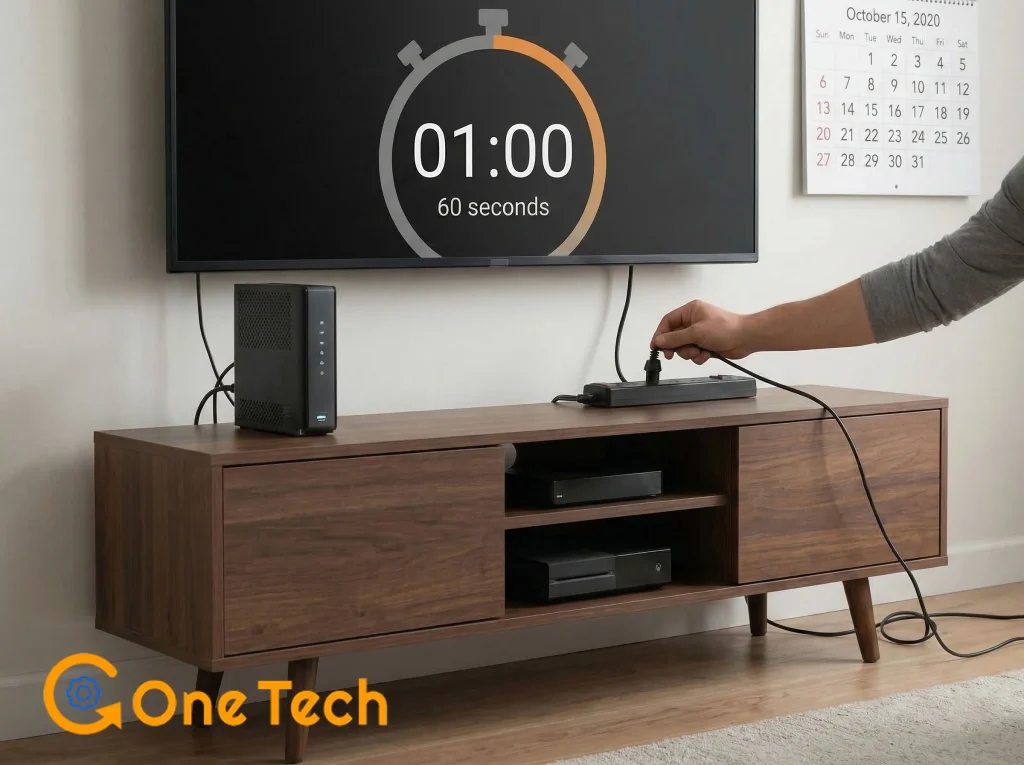
- Unplug your TV and your Modem/Router.
- Wait at least 60 seconds.
- This allows the electricity to fully drain from the capacitors, resetting the network handshake.
2. Clear the Browser Cache and Cookies:
If you’re on a PC or Mac, Chrome and Edge, these devices can use the “Efficiency Mode.” If Hulu is running in a background tab, it can trigger a 503 error.
Clear your cookies and ensure Hulu is not in “Sleep Mode.”
To remove efficiency mode, visit Browser Settings, tap Performance, add: hulu.com to Always keep these sites active.
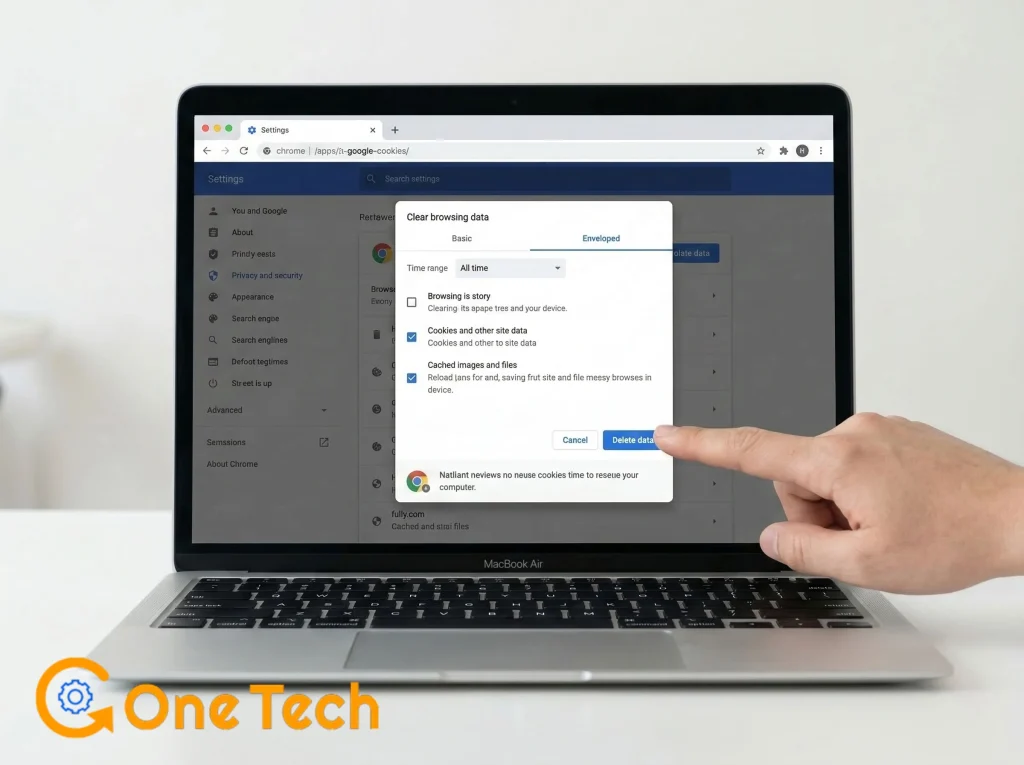
To clear caches and cookies:
MacOs (On Chrome Browser):
- Open Chrome and press Command + Shift + Delete.
- Set the Time Range to All time.
- Check Cookies and other site data and Cached images and files.
- Click Delete data.
3. Reinstalling the Hulu Web App (Chrome/Edge)
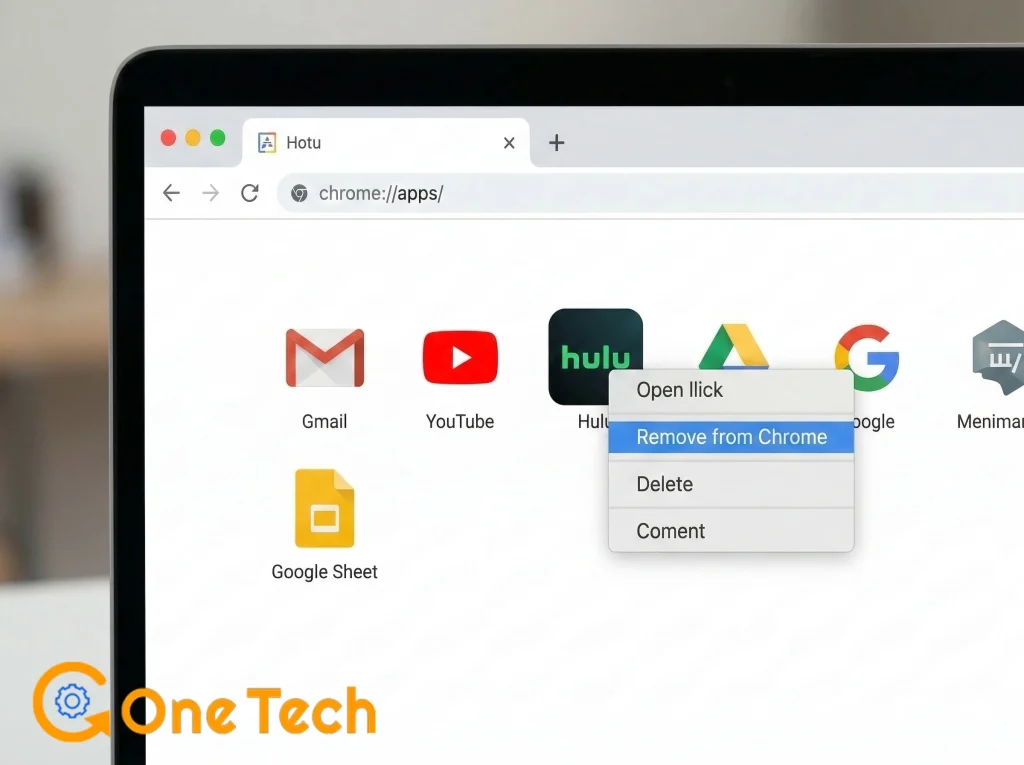
Sometimes the app update itself is corrupted. Delete the Hulu app, restart your device, and then reinstall.
- Open your Google Chrome.
- Search “Chrome://apps/” into the search section.
- Tap the Hulu icon (if it’s visible).
- Tap right click and select “Remove from Chrome”
- Confirm the steps to remove it completely.
4. Clear the sync:
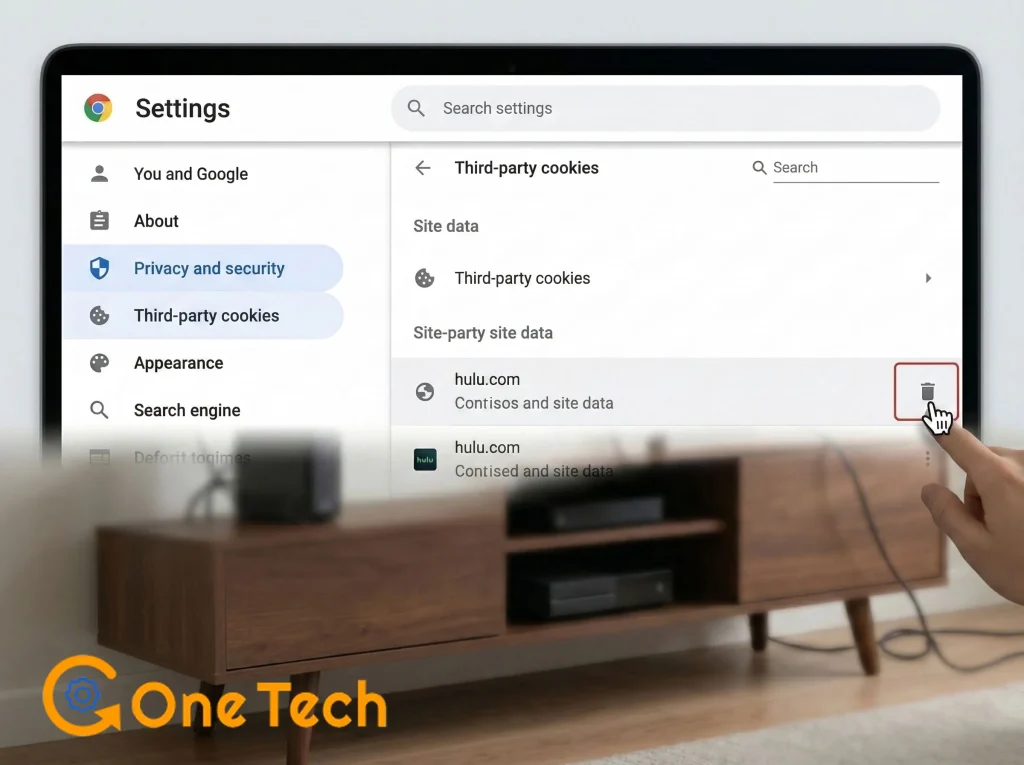
- Open Chrome.
- Tap the three-dot icon form top right.
- Select settings.
- Visit “privacy and security”
- Press Third-party cookies.
- Search Hulu.
- And tap “Trash or Delete”
5. Reboot your device:
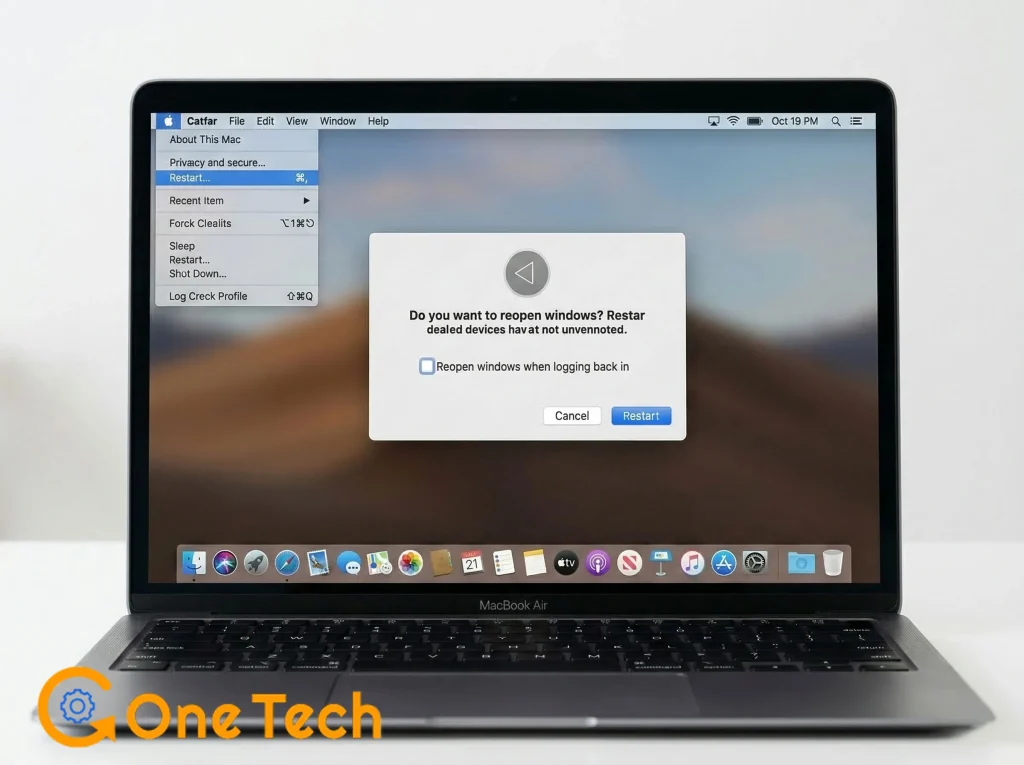
- On your macbook, tap Apple Menu.
- And press “Restart”
- Uncheck the box that says “Reopen windows when logging back in.”
6. Re-index or login from start:
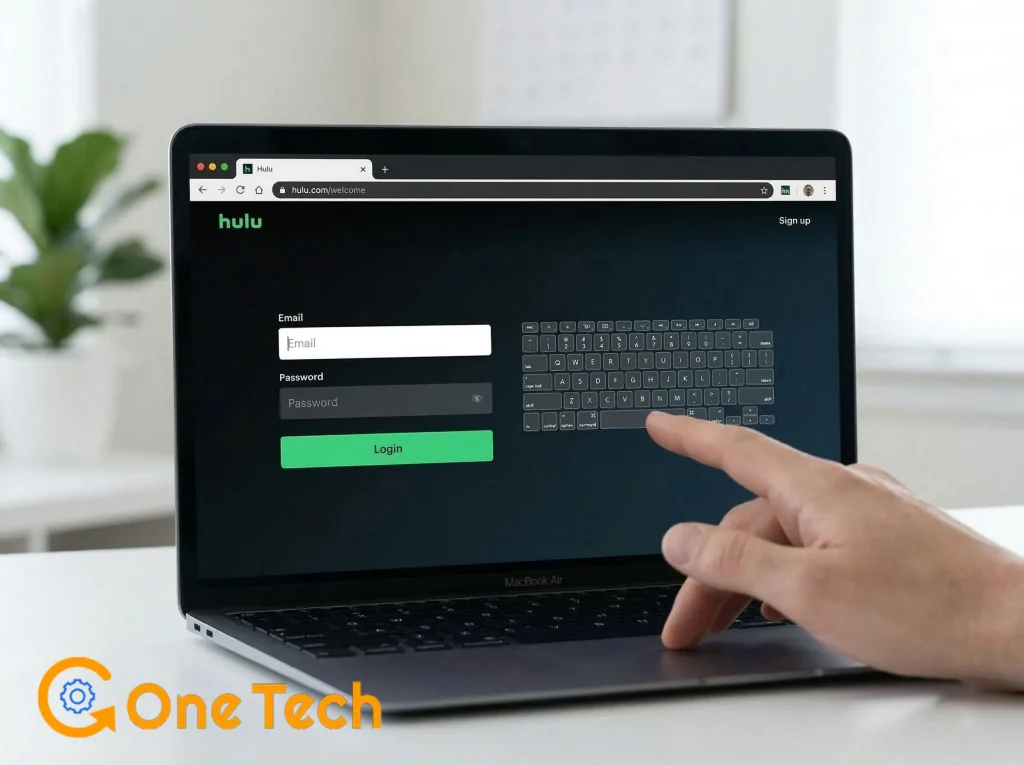
- After rebooting your device, turn it on.
- Open Chrome on it.
- Visit the hulu.com/welcome
- Log in fresh: enter username and password without using pre-saved information.
ISP Issues: Why Xfinity and AT&T Fiber Trigger Error 504
Sometimes, the problem isn’t your house—it’s your provider. In 2026, major US ISPs like Xfinity, Spectrum, and AT&T have implemented “Aggressive IP Cycling.”
To save energy and manage bandwidth, these providers change your IP address more frequently than they used to.
If your IP address changes while you are in the middle of a movie, Hulu’s security system will see a “mismatch” and throw a 504 Gateway Timeout. If this happens often, contact your ISP and ask if they can assign a more stable “DHCP Lease” to your gateway.
What to do:
If this keeps happening and you’re on Xfinity or AT&T Fiber, call your ISP and ask them to assign a more stable “DHCP Lease” to your gateway.
It’s a simple request, and most reps know what it means. It won’t give you a fully static IP, but it will make your address change far less often.
5G Network Issues: Why Hulu 500, 503, and 504 Errors Happen on Mobile Data
While Mesh Wi-Fi is a major cause of Hulu 500-series errors, 5G networks introduce a different kind of instability. Unlike traditional broadband, 5G connections frequently switch between towers and bands, which can interrupt Hulu’s session validation process.
Why 5G Causes Hulu Errors
- Frequent IP Switching: 5G networks dynamically change your IP address, which can trigger Hulu’s security system.
- Carrier-Grade NAT (CGNAT): Many mobile networks share IPs across users, causing session conflicts.
- Network Handoffs: Moving between towers can break the connection mid-stream.
How to Fix Hulu Errors on 5G
- Switch from 5G to 4G/LTE temporarily to stabilize your connection.
- Turn Airplane Mode ON for 30 seconds, then reconnect.
- Avoid streaming while moving (e.g., in a car or train).
- Use Wi-Fi instead of 5G for long streaming sessions.
Pro Tip: If Hulu works fine on Wi-Fi but fails on 5G, the issue is almost always related to IP instability rather than your device or account.
Managing Your Hulu-Disney Bundle Synchronization Issues
The 2026 landscape is unique because of the massive Disney+ and Hulu app merger.
The 2026 App Merger: Why Your Disney+ Bundle Still Sees ‘Error 500’
Many users now watch Hulu content directly inside the Disney+ app. However, if you recently changed your password or updated your billing on one app but not the other, the two “halves” of your account won’t sync.
When the Disney+ app tries to pull a movie from the Hulu library and the “account handshake” fails, it results in a generic Error 500.
To fix this, log out of both apps on all devices, then log back into the Hulu app first to refresh your credentials before returning to Disney+.
Step 1: Log out of Disney+ on all your devices
- Open the Disney+ app
- Go to your Profile icon in the bottom right
- Tap Account
- Scroll down and select Log Out of All Devices
Step 2: Log out of Hulu on all your devices
- Open the Hulu app
- Go to your Profile in the top right
- Tap Log Out
- To log out of all devices at once, go to hulu.com/account on a browser, scroll to Protect Your Account, and select Log Out of All Devices
Step 3: Log back into Hulu first
- Open the Hulu app.
- Enter your email and password and log in.
- Make sure you land on the Hulu home screen and content loads normally before moving on.
After that, you can log in to your Disney+ account as well. And connect to Hulu easily.
When None of the Fixes Work: How to Contact Hulu Support
If you’ve worked through every fix in this guide and the error is still there, the problem is most likely on Hulu’s end — either a server outage affecting your region or an account-level flag that only Hulu’s support team can clear.
Before you call or chat, do this first:
Go to downdetector.com/status/hulu and check whether other users in your area are reporting the same error at the same time. If a lot of people are struggling with the same error, you have nothing to fix because it’s a Hulu server problem. Wait for 30 to 90 minutes to get things normal.
If you don’t see the situation as normal, here’s how to reach Hulu:
Option 1: Live Chat (Fastest)
- Go to help.hulu.com
- Scroll to the bottom and click Chat with Us
- Live chat is available 24/7 and is generally the fastest way to get a response for error code issues
Option 2: Phone Support
- Call 1-888-265-6650 (Hulu’s US support line)
- Available from 8 AM to midnight ET, seven days a week
- Have your account email and the exact error code ready before you call — it speeds things up significantly
How To Stop Hulu Error 500 From Coming Back
Fixing the error once is one thing. Here’s what actually prevents it from showing up again on a regular basis.
Keep your Hulu app updated. Outdated app versions might triggers Hulu 500-series errors.
- On Roku, go to Settings → System → System Update.
- On Samsung and Vizio, check your app store for pending updates.
- On Fire Stick, go to Apps → Appstore → check for updates.
Don’t let your Hulu app run in the background for hours. Don’t let your Hulu app run in the background. Because leaving the app like that causes the session token to expire.
Check your router firmware once a month. Most mesh apps will update automatically if you leave them enabled, but it’s worth opening your router app once a month to confirm the firmware is current.
Final Verdict
Hulu 500-series errors are usually a sign of a “communication gap.” By locking your Mesh Wi-Fi settings, performing deep resets on your Smart TV, and ensuring your Disney Bundle is synced, you can get back to your show in minutes.
People Also Ask:
Q1. Is Hulu Error 500 my fault or Hulu’s fault?
Error 500 is a server-side error in the connection between Hulu and your device. Your account and internet connection are most likely fine.
Q2. Why do I keep getting Error 500 on my mesh Wi-Fi even after restarting?
Because only restarting doesn’t fix the root cause. With mesh systems like Eero or Google Nest, the error keeps coming back because your device keeps switching between nodes. The permanent fix is assigning a static IP to your streaming device through your router app.
Q3. What’s the difference between Hulu Error 500, 503, and 504?
Error 500 means something broke on Hulu’s end. Error 503 means Hulu’s servers are temporarily down or overloaded. Error 504 means the connection to Hulu timed out due to an IP address change from your ISP mid-stream.
Q4. Why am I getting Error 500 inside the Disney+ app when Hulu works fine?
This is a bundle sync issue. Your Hulu and Disney+ accounts are still separate systems on the backend. If the credentials don’t match due to a password or billing change, Disney+ can’t verify your Hulu access and returns Error 500. Log out of both apps, then log back into Hulu first before opening Disney+.
Q5. Will ISP help with Hulu errors?
It can, specifically if you’re on Xfinity or AT&T Fiber. Ask your ISP to assign a more stable DHCP lease to your gateway. This reduces how often your IP address changes, which prevents Hulu from flagging your session as suspicious.
Q6. What’s the fastest way to fix hulu error 500?
Unplug your TV and router from the wall, wait 60 seconds, then plug everything back in. If the error is on a Samsung or Vizio TV, hold the power button on your remote until the TV restarts on its own instead of just turning it off normally.