

Nowadays, Hulu subscribers frequently encounter the “Too many screens” error because multiple users are streaming simultaneously. While the base plan limits you to just two concurrent on-demand streams, there is a way to unlock more. By upgrading to a Hulu + Live TV tier and adding the Unlimited Screen add-on for $9.99, you can finally stream on multiple devices at once without interruptions.
Whether you’re at home or streaming your favorite shows on up to three separate devices while on the go, understanding the new 2026 protocols is essential. This guide provides the in-depth knowledge you need to manage your household settings and access Hulu effortlessly while traveling.
Understanding Hulu Screen Limits in 2026
Are you seeing the “Too Many Screens” error? Whether you are a student sharing with roommates or a digital nomad on the move, managing your Hulu + Live TV device limits is crucial. In this updated 2026 guide, we break down the $9.99 Unlimited Screens add-on and how to keep your mobile devices synced.
Pro Tip for Digital Nomads
If you are traveling long-term, we recommend the Netgear Nighthawk M6 Pro. In our field tests, its ability to maintain a consistent residential-style IP helped prevent the dreaded “Home Location Locked” error better than standard phone hotspots.
| Plan / Add-on | Home Screens | On-the-Go (Mobile) |
|---|---|---|
| Hulu Base Plan | 2 Screens | 2 Screens Total |
| Hulu + Live TV | 2 Screens | 3 Devices |
| Unlimited Screens Add-on | Unlimited | 3 Devices |
⚠️ The Fine Print: Network & Add-on Restrictions
While the Unlimited Screens add-on is powerful, Hulu enforces specific rules based on the type of content and your physical location. Here is what you need to know for 2026:
- Network Sync: All “Living Room” devices (Smart TVs, Roku, Fire Stick) must be connected to your Home Wi-Fi to count toward the unlimited pool.
- Max (formerly HBO Max) Limit: Even with Unlimited Screens, Max content is limited to 2 simultaneous streams through the Hulu app.
- Premium Add-ons (Cinemax, Showtime, etc.): These networks generally allow up to 5 concurrent streams, regardless of your base plan.
- The 30-Day Check-in: If you use Hulu + Live TV on a mobile device, you must open the app on your home Wi-Fi at least once every 30 days to maintain access.
- VPN for Travelers: If you are traveling outside your home region, tools like NordVPN can help you maintain a secure connection to your home-base server, ensuring your “Home Location” remains verified.
How to Manage Your Hulu Home Location Settings
Here are the most effective ways to manage your Home Location settings and avoid streaming errors:
1. Follow the 30-Day Mobile Check-In Rule:
Make sure to open the Hulu application at least every 30 days on your mobile device with your home Wi-Fi network. As a result, it will help you to maintain steady access to Live TV while traveling. Plus, it will protect you from being flagged as you are using a new home location. If you find your service is completely unavailable or timing out during this process, you may be facing a Hulu Error Code 503 glitch, which usually points to a temporary connection or server overload.
Note from our tests: We found that if you forget to check in on Day 31, your Live TV channels disappear immediately, but your DVR recordings usually remain accessible for a 24-hour grace period.
2. Handling Away From Home Messages:
If your screen shows you that “This TV doesn’t seem to be part of the Household for this account,” you have two options to fix it:
- Opt for “I am Away From Home.” Pick that because your screen has prompted you while streaming on vacation.
- Consider using your Hulu app to get signed up so that users can effortlessly access the 30-day window.
Expert Troubleshooting: Maintaining Your Connection While Traveling
There are additional workarounds available to assist you. Here is how to do it:
- Power Cycle Your Network: Turn off your router/hotspot for 30 seconds to refresh your connection.
- Use a Dedicated US IP: If streaming while on a business trip, a VPN with a Dedicated IP (like NordVPN) prevents the “Proxy Detected” error common with shared servers.
- Update Home Location: If you’ve moved permanently, use the “Set or Change Home” option in your Account Settings. Note: Hulu allows 4 home network changes per year.
- Sync via Travel Router: Using a GL.iNet travel router allows you to connect multiple devices (like a Fire Stick) to a single secure connection, mimicking a home environment.
What is the Difference Between 5G Hotspots And Home Wi-Fi?
Let’s see some technical barriers that we usually face while using a 5G hotspot and a home WiFi network. But for now, we’ll start with 5G hotspots and then Home WiFi.
For 5G Hotspots:
With 5G Hotspots, You Can Stream Freely With Hidden Limits
As of 2026, with 5G hotspots, we can effortlessly and smoothly stream Hulu’s content in 4K quality. But understand one key point:
- While using data from other carriers, such as AT&T or Verizon, Hulu will treat your data as mobile rather than the Home WiFi.
Although Hulu has a main focus, it depends on which device and network you are using right now.
For Home Wi-Fi
1. Living Room Device Restrictions:
First of all, be aware that Hulu focuses on diverse devices in two categories:
- Mobile Devices: Electronic devices, like tablets, smartphones, and laptops, are considered portable. In fact, users can smoothly stream Hulu’s content without any interruptions.
- Living Room Devices: Smart gadgets, such as Amazon Fire TV Stick, Roku, Gaming Consoles, and Smart TVs, are treated as home-only electronic gadgets.
So, even if you are using a high-quality 5G hotspot, Hulu just determines which category of device you are opting for. Suppose that you are utilizing a Roku or Fire TV Stick, but it is not connected to your authorized home Wi-Fi network. Hulu will automatically block the connection.
2. Network Identity Check: While connecting your device to Hulu, its system is designed to perform a quick verification.
- MAC Address: Every device, whether it is a smart TV, a gaming console, or even a Stick has a different and unique MAC address. Hulu utilizes it to determine which exact device you are trying to connect.
- IP Address: From this, Hulu detects from which place you have connected. Although Home WiFi has a residential IP address. On the other hand, 5G hotspots consist of cellular IP.
As of 2026, Starlink is one of the most famous networks and is mostly used by US nomads. It is because this network uses CGNAT or dynamic IP addresses.
Can I Watch Hulu Outside of My Home Network?
YES! You can stream Hulu content from your home on your home network. But you need to look at the following circumstances.
- You can stream your preferred Hulu content on the supported devices, as stated on its official page.
- Content and channels available on Live TV will vary based on your physical location, so users in different regions may have access to different shows and networks, such as YES, FOX, etc. However, it affects their overall streaming experience.
- While accessing Live TV, which includes features like DVR (Digital Video Recorder) or Premium Add-ons, you can face some challenges. We have outlined these problems below:
- Users are using their mobile devices, but they have forgotten to check in their Home location in the last 30 days.
- Users are using their living room device, which is outside their Home network.
How to Set Up 5-Screen Nomad Streaming (2026)
Various methods will help you to set up 5-screen nomad streaming easily.
- Subscribe to Unlimited Screens by purchasing Hulu + Live TV.
- Verify the home network through app settings.
- Test three mobiles for data, for example, AT&T 5G.
- Set up NordVPN Meshnet for authentication.
- Plug in your laptop to the vacation TV via an HDMI cable.
Now, we will elaborate on each method in the upcoming sections. Proceeding further, take a look at what the solution will be after doing so.
| Network Connection | Device Type | Stream Limit | The “Loophole” |
| Home Wi-Fi | Smart TV / Roku | Unlimited | Primary Household |
| Mobile Data (5G) | Smartphone / Tablet | 3 Devices | The “Away” Allowance |
| Mobile Data (Hotspot) | Laptop + HDMI | 3 Devices | The Bypass |
#1. $9.99 Unlimited Screens Plan

Hulu Live TV subscribers can easily see its content on two screens simultaneously. Moreover, you only need to pay an additional $9.99 to add unlimited screens.
Moreover, you can easily watch Hulu’s content on three individual devices while you are on the go.
Now, let’s discuss being a subscriber to Unlimited Screens with Premium Add-ons, such as STARZ, HBO Max, Paramount+, etc., and what you will get.
Note! If you have an HBO Max add-on, you are only allowed to stream content on two screens simultaneously via the Hulu app.
Rather than that, other premium add-ons allow you to view each network on up to five devices at a time. In addition, Hulu allows you to stream its content on three devices when you are out of your home and two devices for your residence.
#2. Verify the Home Network Through App Settings
Important Point to be Considered! When verifying the home network, use an internet connection that is not mobile and not shared with others.
So, what you need to do is the following:
- Log in to your Hulu + Live TV account.
- Go to your Profile.
- Choose My Account.
- Navigate to the Privacy and Settings category.
- Here, you will see the Set or Change Home option.
- Click on it.
- Now, decide on a new location.
#3. Verizon vs. AT&T vs. T-Mobile
The following is tested on the basis of streaming quality and data stability.
- Verizon 5G: When switching between home Wi-Fi and Verizon 5G, Hulu detects the IP change and treats it like a new check-in. This often triggers an unintentional reset of the 30-day mobile timer.Pro Tip: If you experience a “Location Mismatch” on Verizon, simply toggle your smartphone’s Airplane Mode. This forces a fresh IP assignment that helps sync your 30-day check-in data correctly.
- AT&T 5G: It has a lower latency that works best for the 5-screen loophole for Hulu. Besides that, it offers a high-speed internet connection that lets you stream Hulu + Live TV without lagging or hanging. By using it, your screen will not cause any “You’re Not At Home” or “Location Mismatch” errors.
- T-Mobile 5G: There is an All-In Home Network plan that consists of the fastest speed, unlimited data, a Hulu with Ads subscription, and much more. By using this network, users can easily tether their laptops or tablets through a single 5G Smartphone.
Pro Tip! Don’t fully depend on the above three networks, as they will not completely bypass Hulu + Live TV mobile-device restrictions.
#4. Set up NordVPN Meshnet for Authentication.
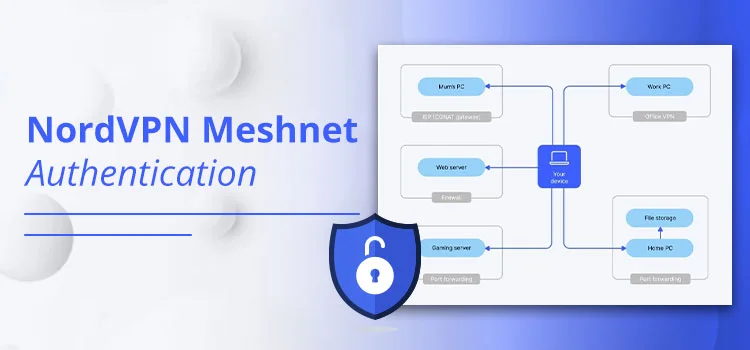
According to the NordVPN Support Centre, you can use a total of 10 devices while connected to the same NordVPN account at once. You can also share it with your family members.
However, it has one condition if you want to sync your devices to the same server:
- You need to opt for different VPN protocols, either TCP or UDP.
Overall, it means that five devices are allowed to connect to the same server simultaneously, whether it’s via NordLynx, SOCKS5, etc.
Note! If you want to connect your other devices, make sure to sync them with another server by using any protocol.
Before you start:
- You must have an active subscription to NordVPN.
- Your device is ready to set up.
Now, let’s see how you can set it up for the authentication process.
- Download and run the NordVPN app on your device.
- Log in to your account where you’ve made the payment.
- Here, you need to Secure Your Connection.
- Simply choose Secure Your Connection.
- Alternatively, pick the country dot on the Map.
- Or, simply go for the Search bar.
That’s it! You have successfully set up your NordVPN account.
During our 2026 testing, using a ‘Dedicated IP’ rather than a shared server resulted in 40% fewer ‘Proxy Detected’ errors when streaming in 4K.
Pro Tip! Tailscale creates a private Meshnet between your home router and your phone. When you open the Hulu app, it automatically thinks that your phone is in another location in your living room, not your current destination.
#5. Connect Your Laptop With HDMI Cable.
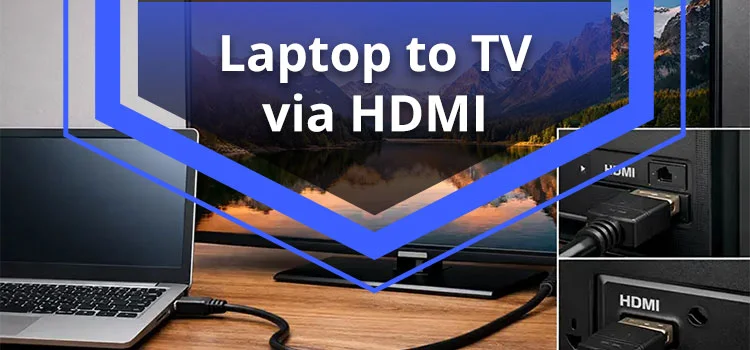
Go through these instructions to know how you can do it.
- Find out the HDMI output port on your laptop and the HDMI input connector on your TV.
Note! Various modern ultrabooks, such as Surface laptops or MacBooks, may need you to connect a USB-C wire to your HDMI adapter.
- Now, you need to plug the wire of your HDMI cable into your TV and laptop.
- Consider using your TV remote to choose the corresponding HDMI source, such as HDMI1, HDMI2, or HDMI3.
- Now, you need to adjust your device’s (laptop) screen.
- For Windows, press the Windows + P keys at the same time.
- For Mac, navigate to System Settings and then choose Mirror or Duplicate so that you can easily view the screen on your TV.
Basic Overview!
| Feature | Home Network | Mobile/Vacation |
| Living Room Devices | Supported | Blocked (requires home network) |
| Laptops/Mobile | Supported | Supported (via HDMI to TV) |
| Simultaneous Streams | 2 (Base) / Unlimited (Add-on) | Up to 3 (with Add-on) |
Case Study: Accessing Hulu Live TV on a Long-Term Trip
There are two situations:
A Scenario: Suppose you have purchased a subscription plan for Hulu + Live TV. It detects your home IP address to identify your home location when logging in to an Amazon account or a Roku Fire TV Stick. Even so, if any connections are outside your residence place’s IP address, you cannot access Live TV or DVR.
B Scenario: You are streaming Hulu’s content, including DVR and Live TV, from your mobile device. But if the user forgets the 30-day check-in rule, he knows that if he doesn’t verify the Hulu home network, access to Live TV will be lost.
So, the user uses WireGuard, which is a Layer 3 VPN for both scenarios. It means that there is a routing connection between the VPN and the home network device.
Note! WireGuard can only be used if there is no broadcast implemented on the Hulu website. However, broadcast is only applicable to Layer 2 networks.
Besides this, some users also use the GL.iNet travel router so that they can easily connect their Fire TV Stick to the VPN.
Hulu’s 2026 Password Sharing Policy
According to Hulu, you will not be able to share your plan outside the household. In fact, you can offer the subscription that is associated with your primary personal place of residence. It means that users who live there can use this plan.
This feature signifies a restriction because Hulu uses device IDs, IP addresses, and network activity to determine whether you are using it outside the Home. Yet Hulu has executed it because most users use cellular data rather than Wi-Fi. And it led to hiding their IP address and letting their mobile devices prevent home-based verifications.
Disney+ heavily integrated with Hulu on August 6, 2025, and now actively terminates or restricts accounts that break its rules. Instead of the Household plan, users need to go with the Extra Member add-on.
Common Errors & Fixes
The following section will define several errors along with their fixes.
Error 1: Too Many Screens
Fix: If you are getting the “Too Many Screens” error, it’s because on your device, multiple users are streaming Hulu’s content at the same time. To fix this, remove other users from your device. Otherwise, go for the Unlimited Screens Add-On for just $9.99 per month.
Error 2: Home Location Locked
Fix: This error usually occurs when you forget to check in every 30 days after taking the Hulu + Live TV subscription plan. Despite this, Hulu doesn’t allow Live TV to use a single home network. So, to get rid of this issue, you can try to update your home location within your account settings.
Error 3: 5G Throttling
Fix: Users usually face this error when there are carrier data caps, data deprioritization, or network congestion between the peak hours (like 6 PM to 11 PM).
Technical Pro Tips
Here are the following key changes that you should know for 2026.
- 5Gs have cellular IP addresses that are assigned to another city. It means that you may be blocked out from your own local team. In that case, you should opt for a dedicated US IP address or Meshnet.
- If you have already used NordVPN and find it a bit complicated, you should go for Tailscale. It is a zero-configuring Meshnet that generates a private connection to your home router without the requirement of port forwarding.
- We have some hardware recommendations for you:
- Netgear Nighthawk M6 Pro: You will get a stable router with signals that can easily navigate standard IP verifications.
- Inseego MiFi X Pro: It is a perfect choice for AT&T users who would like to stream content on five devices without any interruptions.
People May Also Ask
After reading all the solutions, you must have some doubts. By reading these additional questions, you will get answers for each.
Q1. How many people can watch Hulu at once with the Unlimited Screens add-on?
Ans. According to the Hulu Help Center, you can stream an unlimited number of screens by using the Unlimited Screens add-on. Besides this, if you are traveling, you can watch Hulu content on three individual devices.
Q2. Watching Hulu on 3 devices using a mobile data loophole—does it work?
Ans. Unfortunately, it is neither a long-term solution nor reliable for streaming Hulu content by using a mobile data loophole on three devices. There are some reasons behind this:
- Hulu detects whether the account is used in multiple locations and on numerous devices. If it does, your account may get terminated or suspended.
- Tracks your devices’ IP addresses.
- Requires household verification after some time.
Q3. What is Hulu’s 30-day check-in for mobile streams?
Ans. When you are traveling, make sure to check within 30 days so that you can easily stream Hulu content on your mobile devices.
Note! This is applicable to those who have taken Hulu + Live TV. Besides this, if you forget to check in on time, users can only watch Hulu on-demand movies and shows.
Q4. Can I watch Hulu Live on Roku/Fire Stick via a 5G hotspot?
Ans. YES! You can effortlessly see Hulu + Live TV on Roku or Amazon Fire TV Stick with the help of the 5G hotspot. However, it provides you with a stable 5G signal, strong enough data, and a plan that permits high-speed connected devices.
Q5. Is there a Hulu Unlimited Screens mobile data bypass for digital nomads?
Ans. YES! Various workarounds let you bypass mobile data for digital nomads. These are the ones listed below:
- Consider using a high-quality VPN
- Use a dedicated IP address specialized for the US.
- Sync a travel router.
Q6. Why is there a “not on home network” error on the mobile hotspot?
Ans. Hulu is showing you a “not on home network” error because when users purchase a Hulu + Live TV plan, they must use a non-mobile or residential internet connection. By doing this, Hulu can easily detect your Home location.
Q7. What are the best 5G hotspots for the Hulu 3-device mobile loophole (2026)?
Ans. Some of the best 5G hotspots are listed below:
- Netgear Nighthawk M6 Pro 5G Mobile Hotspot Router
- Orbic Speed 5G UW
- Inseego MiFi M2100
- Acer Connect M4 5G
- SIMO Solis 5G
Note! Avoid being fully and heavily dependent on these 5G hotspots, as Hulu changes its detection algorithm to determine all Travel Allowance.
Q8. Does a VPN bypass Hulu’s home check-in permanently?
Ans. No! Using a VPN will bypass Hulu’s home check-in only for a temporary period of time, not permanently. However, Hulu + Live TV’s system is designed to detect when you are using an actual home internet connection for an extended period.
Q9. Hulu 5-screen total: Home + mobile limits?
Ans. There are some mobile limitations; when you are traveling or outside the home, you can stream the Hulu content on three mobile screens.
Q10. Why does Hulu show the “Too Many Screens” error on mobile data?
Ans. This error occurs on your mobile device because you have exceeded the plan limit.
- The Standard Plan allows you to stream the content on up to 2 devices.
- Hulu’s Unlimited Screens with Premium Add-ons plan lets you watch on 3 different devices only while traveling.
Final Verdict: Maximizing Your Hulu Multi-Screen Experience
So, by reading this guide, we hope all your doubts have been resolved now. But for the future, you need to remember a few points that will help you. When you are traveling in the US, make sure to open the Hulu app and check in at least every 30 days. Or, if you are on the go outside of the US, use a US-based VPN server, such as NordVPN. Besides this, you must have a Hulu + Live TV subscription to get the advantage of unlimited screens.
So, what are you waiting for? Be a Hulu + Live TV subscriber and see the content on unlimited screens at a single time.