
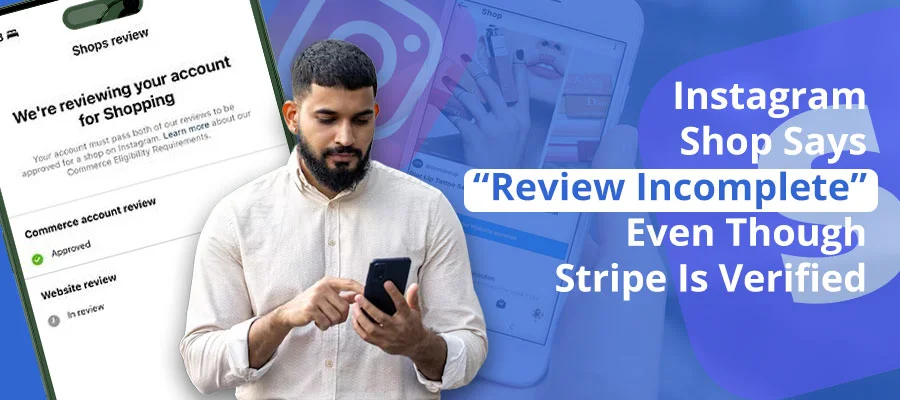
Quick Answer: “Review Incomplete” in Instagram Shop is a Meta Commerce Manager account status — completely separate from Stripe. Stripe only handles payout identity verification. Meta separately reviews your business profile, website, product catalog, and commerce policy compliance before activating your shop. Completing Stripe does not trigger or advance Meta’s shop review in any way.
What “Review Incomplete” Actually Means
When Instagram Shop says “Review Incomplete”, it means Meta has not yet approved your shop inside Commerce Manager — not that your payment setup is broken. This status is about your shop setup, your website, your catalog, your business details, or your policy compliance. It is not the same as Stripe payout approval.
Stripe verifies identity, tax details, and payout readiness. Meta reviews whether your business is eligible to sell through Instagram Shop. These are two different systems. That is why you can have a verified Stripe account and still have an incomplete shop review.
If you keep checking Stripe only, you will not solve the actual blocker. The fix usually sits inside Meta Commerce Manager, Business Manager, your domain settings, or your product catalog.
Why Stripe Verification Does Not Complete Instagram Shop Approval
Stripe and Meta do different jobs. Stripe handles payment-related identity checks. It helps confirm who receives funds. Meta handles commerce eligibility and shop review. Meta wants to see whether your business, website, products, and account setup meet its own commerce rules.
Stripe confirms your identity for receiving money. Meta independently decides whether your business, website, and catalog meet its selling standards. Finishing one has zero effect on the other. You need both approvals separately.
Most pages discuss Stripe, Instagram Shopping, or Commerce Manager separately. Very few explain why a seller can finish Stripe verification and still see “Review Incomplete” in the Instagram shop flow.
| Stripe Verifies | Meta Reviews Separately |
|---|---|
| Identity details | Business eligibility |
| Tax and payout setup | Website quality and trust signals |
| Bank account readiness | Catalog setup and product compliance |
| KYC requirements | Domain connection and policy pages |
The Main Reasons Instagram Shop Review Stays Incomplete
Below are the most common reasons this issue appears in 2026-2027. These are the areas you should check first before you request another review.
1. Your Domain Is Not Properly Submitted
This is one of the biggest hidden causes. Many sellers connect a website to Shopify or Meta, but they do not fully submit or verify the domain in the right Commerce Manager area. The domain may look connected, but Meta still treats the review as incomplete.
Check your domain inside both Meta Business Settings AND Commerce Manager — these are two separate dashboards, and a domain verified in one does not automatically reflect in the other.
Exact path: Meta Commerce Manager → Settings → Business Assets →Websites → Click “Add Website” or check if your domain shows “Not Submitted” status → Submit and verify ownership via Meta Business Settings.
Make sure the exact domain used by your store is verified and submitted. If you use a different root domain, subdomain, or redirect path, Meta may not trust it.
2. Your Website Looks Incomplete
Meta expects a real business site. If your website is thin, unfinished, or missing trust pages, your review can stall. This often happens with brand-new stores.
You should have a clear homepage, product pages, contact details, privacy policy, shipping policy, return policy, and visible branding. If those pages are weak or missing, Meta may not fully approve the shop.
3. You Do Not Have Enough Products in the Catalog
Some guides mention that you need a minimum number of products. Sellers often upload only a few items and expect the shop to pass review. That can slow down the process.
Add at least 5 complete, purchasable products with clean titles, prices, and images. Meta has not published a minimum count, but accounts with fewer than 5 live products stall in review far more often than those with 10 or more.
Avoid thin, duplicate, incomplete, or placeholder products. Make sure titles, images, prices, and descriptions are clean and accurate.
4. Your Business Details Do Not Match Across Meta
Mismatch is a major issue. Your business name, address, phone, email, website, and account identity should align across Commerce Manager, Business Manager, Instagram profile, Facebook page, and checkout details.
If one place uses an old business name and another uses a new one, Meta may pause or delay the review. Even small inconsistencies can cause silent verification friction.
5. Your Instagram Account Looks Weak or New
Meta also evaluates trust. If your Instagram account has very few posts, no clear bio, no profile image, little engagement, and no brand consistency, the system may see it as low-trust.
This does not always create a visible rejection reason. But it can keep your review incomplete for longer.
Signals that suggest a low-trust account to Meta: fewer than 12 posts published, no profile photo, incomplete bio, no business category set, and no content posted in the past 30 days. If 3 or more of these apply to your account, work on the profile for at least a week before resubmitting.
A business account should look established before you ask Meta to review a shop.
6. The Wrong Instagram Account Is Connected
Sometimes the real issue is simple. The wrong Instagram profile is linked to the Business Manager or Commerce account. This breaks the connection between your shop setup and the account that should display it.
Double-check the exact Instagram business profile linked to the correct Meta Business Manager. Many sellers miss this after switching brands, testing pages, or using an old Facebook asset.
7. Commerce Policies or Product Eligibility Issues
Not every product qualifies for Instagram Shopping. If Meta sees restricted or unclear items, your shop may stay incomplete or fail review. The same problem can happen if product data is misleading, missing, or badly formatted.
Review your product types, titles, images, and descriptions. Remove products that may trigger policy review issues until your shop passes approval.
8. Missing Business Information in Commerce Manager
Your account may be missing a phone number, customer support email, address, tax-related detail, or another required field. Sellers often assume Stripe handled this already. But Meta still needs complete business information on its side.
Go through every settings screen manually. Do not assume a blank field is optional just because the platform let you continue.
How to Fix “Review Incomplete” Step by Step
Follow these steps in order. Each one targets the most common cause of a stuck review. Do not skip ahead — later steps depend on earlier ones being clean.
- Open Meta Commerce Manager and check your current shop status.
- Strengthen the Instagram profile with real posts, clear branding, bio details, and active business signals.
- Accept Merchant Agreement and Commerce Policies
- Submit and verify your domain
- Connect and verify the Facebook Business Page
- Complete all Business Info fields
- Audit catalog for thin, duplicate, or policy-sensitive items
- Review website trust pages (privacy, returns, shipping, contact)
- Verify account connections (Instagram ↔ Facebook Page ↔ Commerce Manager ↔ Business Manager)
- Enable Shopping in Instagram app (Settings → Business → Shopping)
- Request review only after all above steps are clean
Important: Re-requesting review before fixing the real issue can trigger a longer cooldown period inside Commerce Manager. In some cases, repeated failed submissions cause Meta to extend the review queue or add additional manual checks. Always complete a full audit first.
How Long Instagram Shop Review Can Take
Some shops take 1–3 business days. Others wait 5–10 days if Meta’s system sees incomplete data or unclear business signals. If nothing has changed after 10 business days and you have fixed all known issues, contact support directly.
If you have already fixed the main issues and nothing has changed, give the review process a little time. But if the account has obvious gaps, waiting alone will not help. An incomplete review status usually means something still needs attention.
| Action You Took | Typical Wait Time |
|---|---|
| Domain submitted and verified | 24–48 hours to reflect |
| Business info completed | Instant to 24 hours |
| Catalog submitted for review | 1–3 business days |
| Full shop review after all fixes | 3–10 business days |
| Support ticket response (Commerce Manager) | 24 hours (email) to 5–10 days (queue) |
When You Should Contact Meta Support
If you have already checked your domain, business info, catalog, website, profile trust signals, and account links, then support may be the next step. At that point, the issue may be tied to backend review status, an internal flag, or a connection problem you cannot see from the dashboard.When you contact support, be specific. Include your Commerce account details, your domain, your Instagram business account, and a short summary of what you already fixed. Short, factual messages with your Commerce Account ID, Business Manager ID, and domain included work faster than long explanations. Meta support uses these IDs to pull your account directly — without them, responses tend to be slower and more generic.
Related Fix Guides
If your Stripe payout is connected but you are also seeing checkout errors specific to Instagram, we cover the full payment loop issue separately in our Instagram Shop Stripe checkout loop fix guide. For sellers managing multiple platform payouts, see also our guides on TikTok Shop affiliate payout delays in Stripe and YouTube Shopping affiliate commissions not showing in Stripe.
Recommended YouTube Video Embed
A relevant video can improve time on page and help users follow setup steps visually. Add one video that explains Instagram Shopping errors, Commerce Manager review issues, or Instagram Shop approval troubleshooting.
Still Seeing “Review Incomplete” After All Fixes?
If you have verified your domain, completed all business info, fixed your catalog, and strengthened your Instagram account — but the status has not changed after 5 business days — the issue may be on Meta’s backend.
Contact Meta Business Support directly through Commerce Manager → Help → Contact Support. Include your Commerce Account ID, Business Manager ID, your store domain, and a one-line summary of what you have already fixed. This gives the support agent everything they need without back-and-forth delays.
FAQ Section
Does Stripe verification complete Instagram Shop setup?
No. Stripe verification only handles payout and identity readiness. Meta still reviews your shop setup, catalog, website, and business trust signals separately.
Why does Instagram Shop still say “Review Incomplete”?
It usually means Meta still sees a missing requirement. Common causes include domain issues, weak website trust pages, catalog problems, account mismatch, or incomplete business info.
Why is my Instagram Shop visible to me but not to other people?
This often happens when the shop has not fully passed review or has not been approved for public visibility. Until approval is complete, other users may not see the shop properly.
Can I resubmit my shop for review?
Yes, but only after fixing the real issue. If you resubmit too early, you may waste time and trigger more delay.
What should I check first?
Start with the domain, website trust pages, business info, and catalog quality. Those are the most common causes behind an incomplete review.
References
- https://community.shopify.com/t/instagram-shop-stuck-in-website-review-mode-how-do-i-get-approval-expedited/174192
- https://help.instagram.com/1944109912526524/
- https://www.admetrics.io/en/post/how-to-add-checkout-on-instagram
- https://www.hulkapps.com/blogs/ecommerce-hub/how-to-fix-shopify-instagram-product-tagging-error
- https://quadlayers.com/fix-instagram-catalog-not-working/
- https://elfsight.com/blog/instagram-shopping/
- https://support.stripe.com/questions/business-website-for-account-activation-faq
- https://support.stripe.com/questions/what-do-i-need-to-do-to-verify-my-stripe-account
- https://www.gonetech.net/blog/youtube-shopping-affiliate-commissions-not-showing-stripe-fix/
- https://www.gonetech.net/blog/tiktok-shop-affiliate-payout-delayed-stripe-fix/
- https://www.gonetech.net/blog/fix-instagram-shop-stripe-checkout-loop/