
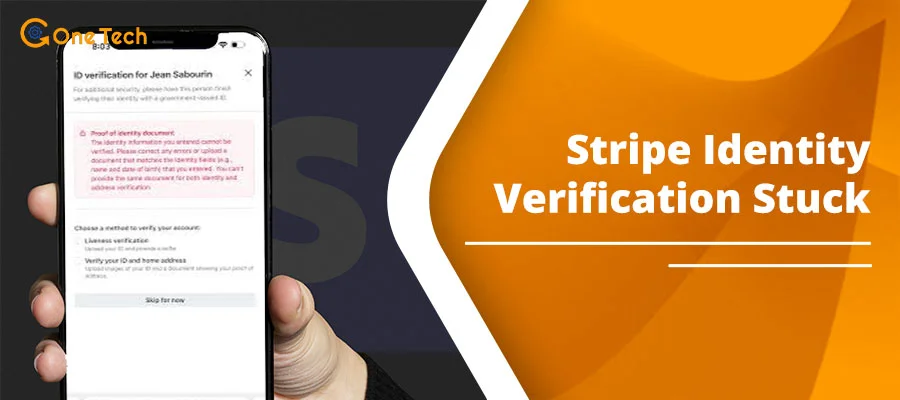
If you’ve uploaded your ID in Stripe Express but the dashboard or your marketplace keeps pushing you back into the identity verification loop, you’re not alone. Many users in 2026 report finishing the ID upload, seeing “verified” in settings, yet still being asked to upload again. This guide explains exactly why this happens and gives you a clear step‑by‑step fix list to escape the loop for good.
What the “Stripe Express Identity Verification Loop” Really Means
Stripe Express uses automated identity checks and document uploads to verify who you are before allowing payouts. This process runs in the background the moment you submit your ID — but the automated pipeline has multiple failure points that can silently break without returning a clear error. If any part of that automated flow fails, or if the state‑sync between Stripe’s servers and the platform you’re using breaks down, you can get stuck in a retry loop even after submitting a perfectly valid ID.
Stripe Express is a connected account product. That means two separate systems need to agree on your verification status — Stripe’s own servers and the marketplace or platform (like Shopify, Oddle, or a custom Connect integration) you signed up through.
⚠️ Key Signal to Watch
If Stripe’s own settings page shows “Identity Verified” but your marketplace still redirects you back to Stripe verification, that is almost always a platform‑side state‑sync issue — not a problem with your documents.
This same platform‑sync failure is not unique to Stripe Express — Instagram Shop shows “Review Incomplete” for the same reason even after Stripe verifies you.
to “pending” within 60 seconds without showing a failure reason, your document
was likely rejected by the automated image reader — not the verification engine.
This happens most often with screenshots of IDs, photos taken in poor lighting,
or images where the card’s chip or hologram causes glare.
Re-photograph your physical card directly; do not screenshot a digital copy.
A seller completes Stripe Express onboarding on a marketplace, sees “verified” inside their Stripe dashboard, yet the marketplace dashboard still shows an orange “Action Required” banner pointing back to Stripe. The loop persists because the marketplace hasn’t received — or properly processed — the webhook event confirming verification.
📌 Real‑World Example
A food delivery platform user in the US (reported on a Stripe community forum, March 2026) uploaded their driver’s license three separate times. Each attempt showed “pending” then “failed” — even though the name, address, and expiry were all correct. After waiting 48 hours and requesting a fresh Stripe Express onboarding link from the platform (not from Stripe directly), the verification cleared on the first attempt — because only the platform can regenerate an Express account link. The root cause: an expired session token — Stripe’s onboarding links are single-use and time-limited. Once expired, any upload within that session is silently discarded regardless of document quality.
Quick Diagnosis: Under 5 Minutes
Before you try anything else, run through this quick diagnosis. It takes less than five minutes and covers the three most common root causes. Skipping these steps often leads to unnecessary re‑uploads that can trigger a temporary lockout.
- Compare your ID details with your Stripe account — character by character. Check your legal first name, last name, date of birth, and address. A single‑letter mismatch (e.g., “Jon” vs. “John,” or an abbreviated middle name) is enough to fail automated verification.
- Inspect the ID image quality. The photo must be clear, full‑frame, and unexpired. No glare, no blur, no partial card, no cropped edges. Stripe’s automated system reads text on the document — if any field is obscured, the check fails silently.
- Count your retry attempts. If you’ve submitted 4 or more times and each upload is rejected within seconds, you are almost certainly in Stripe’s rate-limit window — further retries will auto-fail regardless of document quality. Stop all attempts immediately and wait at least 24 hours before trying again.
Common Causes of the Stripe Identity Verification Loop
Understanding the cause helps you pick the right fix on the first try. Here are the five most common reasons users in 2026 get stuck — and what’s actually happening under the hood for each one.
Name or Address Mismatch
Your legal name or address on the ID doesn’t match what’s in your Stripe account. Even a middle initial can break the check.
Broken Verification Session
Stripe created a session token that is corrupted or expired. Uploads appear to go through but are never actually processed.
Retry Lockout / Throttling
Too many failed attempts in a short window trigger a temporary lockout. Stripe rate-limits further verification requests to protect against abuse.
Low‑Quality or Invalid ID Upload
Expired, cropped, grayscale, heavily edited, or blurry ID images fail Stripe’s automated document reader.
Platform‑Side Onboarding Loop
The marketplace or platform hasn’t synced your “verified” status from Stripe. The platform keeps redirecting you even though Stripe has already approved your ID.
How to Fix the Stripe Express Identity Verification Loop After Uploading ID
Work through these steps in order. Each one is designed to eliminate a specific cause before moving to the next. Don’t skip ahead — especially step 4 (waiting) if you’ve already retried multiple times.
1. Double‑check your ID details against your Stripe account
Log in to Stripe Express → Settings → Personal Details. Compare your legal name, date of birth, and address character by character against your government‑issued ID.
Fix any mismatch before uploading anything.
Even “St.” vs. “Street” in your address can trigger a failure.
2. Re‑upload a perfect ID image (front and back)
Use your phone camera in good lighting. Lay the ID flat on a dark, plain surface. Capture the full card — all four corners visible, no glare, no shadow, no fingers covering the text.
Upload both front and back, even if Stripe’s UI only requests one side — the automated reader uses the back of the card to cross-verify the machine-readable zone (MRZ) against the front.
3. Clear your browser cache and open a fresh incognito window
In Chrome: Settings → Clear browsing data → Cached images and files + Cookies. Then open a new incognito window and go directly to your Stripe Express dashboard link.
Do not use a bookmarked or previously loaded tab.
Stale session data is a surprisingly common cause of the loop.
4. Wait 24–48 hours before retrying if you’ve made multiple failed attempts
If you’ve tried 4 or more times and each upload is rejected almost instantly, you’re likely in a
temporary lockout state. Stripe rate‑limits aggressive retry behavior. Stop all attempts, wait a full 24–48 hours, then come back with a fresh browser session. Retrying during the lockout window will only extend it.
5. Ask the platform to resend your Stripe Express onboarding link
If you’re using a marketplace like Shopify, Oddle, SquadTrip, or a custom platform — contact their support team and ask them to regenerate your Stripe Express onboarding link. Note: Stripe’s own support cannot do this on your behalf — only the platform that created your Express account can issue a new link.
- Shopify: Go to Shopify Admin → Settings → Payments → Manage → under Stripe, click Verify identity. If grayed out, contact Shopify Support and request they “resend the Stripe Express onboarding link.”
- Oddle: Log in to Oddle merchant dashboard → Settings → Payments → Stripe Verification → click Retry Verification. If unavailable, email Oddle support requesting a new Stripe Express account link.
- SquadTrip: Contact SquadTrip support directly — they have a documented process for regenerating onboarding links for restricted accounts. (SquadTrip Help Center ↗)
- Other platforms: Ask your platform’s developer to call Stripe’s
AccountLinks.createAPI with typeaccount_onboardingfor your connected account ID.
6. Contact Stripe support and reference your upload count and session details
If none of the above work, reach out to Stripe support directly. When you do, mention the number of upload attempts, the approximate dates and times, and whether you see “verified” in Stripe settings but are still looping. That specific combination — “verified in Stripe settings, still looping on platform” — directly signals a webhook delivery failure to Stripe’s team and routes your ticket to the Connect integrations queue rather than general support, which typically resolves faster.
7. Disable VPN During Verification
VPNs and proxy services can block identity verification redirects or cause Stripe to flag the session as suspicious. Temporarily disable your VPN before starting or retrying the verification process.
Stripe Verification Loop: Symptom vs. Likely Cause vs. Fix
Use this table for a fast diagnosis. Find your symptom in the left column, check the likely cause, and jump straight to the right fix. This table is designed for quick reference when you’re in the middle of dealing with the loop.
| Symptom | Likely Cause | What to Do |
| Expired, blurry, or half‑frame ID upload | Document quality / validity issue | Re‑upload a clear, valid, full‑frame color photo of your ID — front and back. |
| Name on ID doesn’t match Stripe account name | Name mismatch in account details | Update your Stripe account name to match your ID exactly, including middle names. |
| “Verified” in Stripe settings but platform still loops | Broken session or platform state‑sync failure | Wait 24 hours, then ask your platform to resend the Stripe Express onboarding link. |
| Instant “Couldn’t verify ID” on every attempt | Lockout or broken verification session | Stop all retries immediately. Wait 24–48 hours, then restart in a fresh browser with a new link. |
| Platform keeps redirecting back to Stripe verification | Onboarding‑state mismatch between platform and Stripe | Ask the platform to sync your Stripe‑verified status or generate a new onboarding link. |
| Verification pending for more than 72 hours with no update | Manual review queue or document processing delay | Contact Stripe support with your account ID and upload timestamps. Manual reviews can take 3–5 business days. |
Pro Tips to Avoid the Loop in the First Place
If you’re setting up a new Stripe Express account — or helping someone else do it — these tips will help you avoid the verification loop entirely. We’ve seen these mistakes trip up even experienced platform sellers.
- Enter your name exactly as printed — including hyphens, accents, and suffixes like Jr. or III. These characters are part of the machine-readable zone on your ID and must match your Stripe account character for character.
- Submit both front and back of your ID in the same session. Stripe’s automated reader uses the back of most cards to verify the machine-readable zone (MRZ) — this is especially important for driver’s licenses issued before 2020, which often have the MRZ on the reverse.
- Don’t use a VPN or ad blocker during the onboarding flow. These tools regularly interfere with Stripe’s verification redirects and session tokens.
- Complete the entire onboarding flow in a single session. Stopping mid-flow and resuming later can corrupt the session. If you need to stop, ask your platform for a fresh onboarding link when you return.
- Check your email right after submitting. Stripe sometimes sends a follow-up email requesting additional information (e.g., an address verification document or a selfie with your ID). Missing that email keeps you stuck.
Frequently Asked Questions
These questions are drawn from documented patterns in Stripe community forums, Reddit threads, and platform support tickets reported by US users in 2025–2026.
Why does Stripe keep asking for my ID after I already uploaded it?
This usually happens for one of three reasons: a name or address mismatch between your ID and your Stripe account, a document quality issue (blurry, cropped, or expired ID), or a broken verification session that prevents Stripe from processing your upload. Resubmit a clean, clear copy of your ID — but only after requesting a fresh onboarding link from your platform, not by retrying in the same browser session, which will fail if the original session is expired.
Does Stripe accept grayscale or edited ID uploads?
No. Stripe’s automated identity verification system expects clear, full-color, unedited photos. Grayscale scans, heavily cropped images, screenshots of photos, or documents with enhanced contrast are likely to be rejected. Always photograph your physical ID directly with your phone camera in good lighting.
Stripe Express says “identity verified” but I’m still in a loop — why?
This is a classic platform‑side state‑sync issue. Stripe has verified you on their end, but the marketplace or platform you’re using hasn’t received or processed Stripe’s webhook confirmation. The fix: ask the platform’s support team to resend your Stripe Express onboarding link or manually sync your verified status. Stripe itself cannot force the platform to update — you need to go through the platform.
How long does Stripe identity verification take in 2026?
In most cases, Stripe’s automated verification completes within a few minutes to a few hours. If your account is flagged for manual review (e.g., due to multiple failed attempts or an unusual document), it can take 3–5 business days. If you haven’t received an update after 72 hours, contact Stripe support.
Can I use a passport instead of a driver’s license for Stripe Express verification?
Yes. Stripe accepts several government‑issued photo IDs, including US passports, driver’s licenses, and state ID cards. If your driver’s license is causing repeated failures (e.g., due to a machine‑readable zone issue or an older card format), try switching to your passport. Make sure it’s current and not expired.
Will retrying too many times ban my Stripe account?
Multiple failed attempts won’t immediately ban your account, but they can trigger a temporary rate limit or lockout that makes further attempts fail automatically. If you’ve tried 4 or more times, the safest move is to stop all retries, wait 24–48 hours, and then contact Stripe support if the issue persists. Continued aggressive retries can escalate to a manual review hold.
Bottom Line
If you are reading this at the end of the loop right now, here is the fastest path forward
based on where you are:
- Just uploaded for the first time and it failed: Check name/DOB/address match
in Stripe settings first. Re-photograph your ID directly with your phone and resubmit
in an incognito window. - Uploaded 3+ times and each attempt fails instantly: Stop retrying.
Wait 24 hours, then request a fresh onboarding link from your platform —
not from Stripe. Stripe cannot generate this link for you. - Stripe says “Identity Verified” but your platform still shows “Action Required”:
This is a webhook delivery failure on your platform’s side.
Contact your platform’s support team — not Stripe — and ask them to
manually sync your verified status or regenerate your onboarding link. - Pending for more than 72 hours with no update:
You are in manual review. Contact
Stripe support
with your account ID and upload timestamps. Manual reviews take 3–5 business days.
References & Sources
Stripe Support — Onboarding Requirements for Stripe Connect: https://support.stripe.com/questions/onboarding-requirements-for-stripe-connect-in-india
Shopify Community — Urgent Request for Manual Identity Verification: https://community.shopify.com/t/urgent-request-for-manual-identity-verification/581743
Reddit r/stripe — My Ongoing Struggle with Stripe’s Identity Verification and Withheld Funds: https://www.reddit.com/r/stripe/comments/1e8ndf2/my_ongoing_struggle_with_stripes_identity/
Reddit r/stripe — Stripe Connect ID Verification Stuck – Verified Multiple Times: https://www.reddit.com/r/stripe/comments/1mgzqm0/stripe_connect_id_verification_stuck_verified/
YouTube — How to Fix Stripe Express Login Issues – Identity Verification Errors (2026): https://www.youtube.com/watch?v=kpkiiZRMWsM
YouTube — Fix Stripe Identity Verification Problem (Full Guide 2026): https://www.youtube.com/watch?v=nxz620l6iRc