
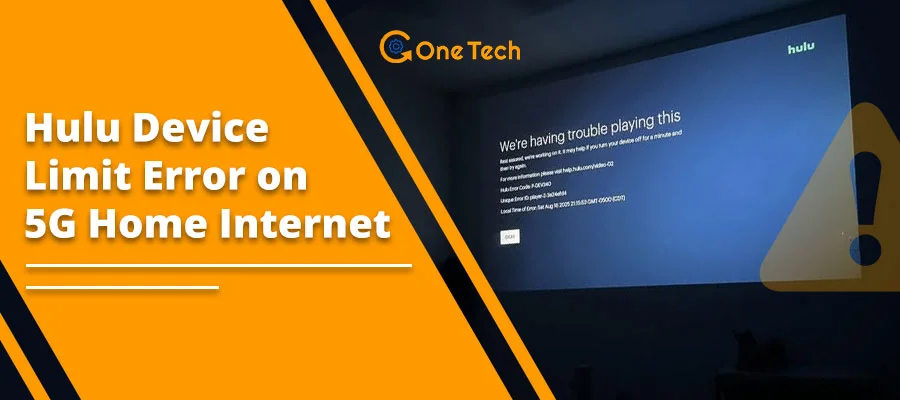
If you use T-Mobile wireless internet to watch TV, you might suddenly get blocked from watching your favorite shows. This detailed guide is written for everyday US home users to help you fix these annoying streaming bugs step by step.
We will show you exactly how to get your smart TV, streaming stick, and mobile devices talking nicely with your home internet box again.
What This Problem Looks Like
When your streaming setup gets confused, you will usually see very specific messages pop up on your screen. Here is what network communities call this issue and what you might see at home:
- The “Not at Home” Message: Your smart TV or Roku screen suddenly says “Your streaming device is not connected to your home network.”
- Error Codes: The app might display a specific code like Error Code HU-01 or say you have crossed your location limit for the year.
- Too Many Screens Warning: A message says too many people are watching at the same time, even if you are the only one in the house trying to use it.
- Phone Works, TV Fails: Your smartphone plays video perfectly on the mobile data network, but your living room television completely blocks you.
Why This Can Happen
This issue is a very popular pattern online for people who use home wireless internet. It does not mean your hardware is broken. Instead, it usually happens because of how modern wireless home internet signals work behind the scenes. Here are the most common reasons:
- The Changing IP Address: Regular home internet from a cable company gives your house one digital home address (called an IP address) that stays the same for a long time. Wireless 5G towers often change this address dynamically. When the address changes, the streaming service thinks your TV has moved to a completely new house.
- The Router Got Confused: Sometimes your home gateway (the T-Mobile Wi-Fi box) loses track of your streaming stick. When the Wi-Fi box gets confused and loses track of your device, it can assign a mismatched temporary network identity.
- Location Sharing is Turned Off: If your smartphone or tablet has location permissions turned off, the streaming app cannot verify that you are actually sitting inside your own living room.
- Split Wi-Fi Bands: Many modern routers use two separate channels: the 2.4GHz Wi-Fi band (the older, longer-range Wi-Fi signal) and the 5GHz Wi-Fi band (the newer, faster, shorter-range Wi-Fi signal). If your TV is on one band and your smartphone is on the other, the streaming app might think they are in two different houses.
Step-by-Step Fixes
Follow these steps in order. Start with the easiest power tricks before moving on to changing your network settings.
Step 1: Check if Your Whole Internet Connection is Slow
Before changing any settings, make sure your wireless signal is running strong. Sometimes a weak signal from the tower makes the streaming app time out and throw a location error by mistake. If you notice your speeds are dropping heavily depending on the time of day, you can check out this guide on how to fix T-Mobile home internet when it gets slow at night.
Step 2: Power Cycle Your T-Mobile Gateway the Right Way
This is the most common fix. It forces your internet box to request a fresh, stable connection from the nearest cell tower.
- Unplug the power cable from the back of your black or silver T-Mobile internet box.
- Wait a full 60 seconds. Do not rush this step.
- Plug the power cable back in and wait for all the lights on the box to turn solid green or show a stable connection message on the small screen.
- Restart your Smart TV or streaming stick right after.
Step 3: Connect Your Devices to the Exact Same Wi-Fi Channel
As mentioned earlier, your gateway broadcasts two separate signals: a 2.4GHz Wi-Fi band (the older, longer-range Wi-Fi signal) and a 5GHz Wi-Fi band. To fix location mismatch bugs:
- Open the Wi-Fi settings on your smart TV.
- Look at the name of the network you are connected to.
- Take your smartphone, open its Wi-Fi settings, and make sure it is connected to the exact same network name. If your router uses separate names for the two speeds (like “HomeNet_2.4” and “HomeNet_5”), put both devices on the same one.
Step 4: Update Your Home Location Using a Mobile Device
If your TV is blocked, you can use your smartphone to tell the streaming service where your actual home is located.
- Disconnect your smartphone from your home Wi-Fi temporarily so it uses normal cell data.
- Turn on your phone’s Location Services or GPS settings.
- Connect your phone back to your T-Mobile home Wi-Fi network.
- Open the streaming app on your phone. This forces the app to look at your true GPS coordinates and match them to your home wireless box.
- Now, open the app on your Smart TV or Roku. The error message should clear out.
Step 5: Switch to an Ethernet Cable for Your TV
Wireless connections can drop out for a split second, causing the streaming software to lose track of your device identity. If possible, plug a physical Ethernet cable directly from one of the yellow ports on the back of your T-Mobile gateway straight into the back of your smart TV or streaming box. A hardwired connection provides a much more stable identity that is less likely to trigger location security checks.
US-Specific Context: Why 5G Internet is Different
Traditional American cable and fiber providers like Xfinity, Spectrum, Cox, and AT&T route physical wires directly to your house. This gives your home a stable geographic footprint. T-Mobile Home Internet and Verizon 5G Home Internet use cell towers instead.
Because your internet box connects to mobile towers, your virtual location might look like it is two cities away or changing constantly. If you are using a different wireless provider and experiencing speed drops alongside these errors, take a look at our quick guide on how to fix Verizon 5G home internet slow speed issues. For those living in rural areas using satellite connections, you might also want to learn about dealing with Starlink satellite rain blockages.
When You Should Contact Support
Sometimes, software settings lock up completely, and you will need a human helper to reset things on the backend. Here is when to make the call:
- Call the Streaming Support Line: If you have used up all your allowed “home location changes” for the year (most services only allow 4 or 5 changes), you must contact their customer service chat. Tell them clearly: “I use T-Mobile 5G Home Internet and my IP address changed automatically.” They will manually reset your counter for free.
- Contact T-Mobile Support: If your gateway constantly shows a weak connection light or keeps placing your virtual location in a different state, call T-Mobile. Ask them if your gateway is connected to the best local tower for your address.
Frequently Asked Questions
Q: Why does Hulu think I am not at home when I am sitting in my living room?
A: Your T-Mobile box uses cellular signals. The cell towers frequently rotate your digital address. When this happens, the streaming service thinks your internet box moved to a different house.
Q: How many times can I change my home location?
A: Most live TV streaming services give you 4 or 5 changes per year. If your wireless internet changes its address too many times, you will hit a limit and need customer support to clear it.
Q: Will using a mobile phone hotspot fix the device limit error?
A: No. Connecting your TV to a temporary phone hotspot will usually make the location error worse because mobile data locations shift constantly as you move around town.
Q: What does it mean when my phone works but my Roku does not?
A: Handheld devices like smartphones use built-in GPS chips to prove where they are located. Smart TVs and Roku sticks do not have GPS chips, so they rely entirely on the messy location info coming from your internet box.
Q: Can I fix this by turning off the Wi-Fi on my T-Mobile box?
A: Turning off the Wi-Fi will shut down your whole network. Instead, just do a clean restart by unplugging the power cable for one full minute to pull a fresh signal from the tower.
Q: Is there a way to lock my T-Mobile gateway to one single IP address?
A: Regular residential T-Mobile home accounts do not offer fixed or static addresses. The system is designed to change addresses automatically to keep the cellular network running smoothly.
Short Recap
Location and device errors on 5G wireless networks almost always happen because your wireless internet box updates its tower connection and gets a new digital address. To get things working smoothly again, remember these key steps:
- Unplug your T-Mobile gateway for 60 seconds to clear out old network confusion.
- Make sure your smart TV and your smartphone are connected to the exact same Wi-Fi channel name.
- Open the streaming app on your smartphone with location services turned on to refresh your home status.
Keep your home network setup simple, avoid changing router settings too often, and reach out to streaming support if you ever need your official location counter reset!