
Quick Answer:
To fix or disable Gemini AI email summaries in Gmail, go to Settings → See all settings → General → Google Workspace Smart Features and uncheck the box. For mobile, open the Gmail app, tap the three‑line menu, go to Settings → your account, then uncheck the Smart Features box.
Author note: This guide is based on live tests of Gmail 2026 with both personal and Google Workspace accounts. I’m an SEO and content specialist with over 10 years of experience in email deliverability and AI‑assisted content, so the steps are tested rather than theoretical. For more Gmail and email‑client troubleshooting guides, see our email troubleshooting hub.
What Is the Gmail Gemini AI Summary?
In January 2026, Google officially turned on Gemini AI features across Gmail for its 3 billion+ users with no opt-in required. Although users are given the choice to disable it if they don’t require it anymore.
This Gemini AI feature is the AI Overview card. It appears at the top of an email thread and shows a short AI-generated summary. Gemini scans the full thread, identifies the intent (a to-do, a deadline, a promotion), and displays a condensed version before you even read a single line.
Real example: You send a promotional email with a discount offer buried in paragraph three. The recipient opens Gmail. Instead of seeing your subject line and preheader, they see a Gemini summary card that reads: “Promotional email from [Brand]. Discount offer inside.” That’s how this feature works.
But for many users and marketers, this is a problem: Gemini summaries can skim over crucial content and may only show the first few words or characters of your email to the recipient. We’ll explain how it happens and, if needed, how to disable the AI summary in Gmail entirely.
Why Gemini Summarizes Your Emails (And Why the First 140 Characters Matter)
Gemini doesn’t just read the first line. It scans the entire thread for context, urgency, and intent. But when generating its summary card, it heavily weighs the opening of the email body — roughly the first 140–200 characters.
This is different from a standard email preview, which only shows the start of the body text. Gemini goes further. It looks for:
- Action items (deadlines, requests, to-dos)
- Urgency signals (words like “expires,” “today,” “urgent”)
- Thread sentiment — in multi-reply threads, it may even summarize how people feel about the conversation
So if your email opens with “Hi [First Name], hope you’re doing well,” Gemini has very little to work with. It will generate a generic, low-value summary (or worse), pull a misleading line from deeper in the email.
All steps in this guide were tested in April 2026 on Gmail’s web interface and the latest Gmail Android and iOS apps, so you can expect them to match what you see in your inbox.
How To Disable Gemini AI Summaries In Gmail (Step-by-Step)
On Desktop
- Search ‘Gmail’ in your browser.
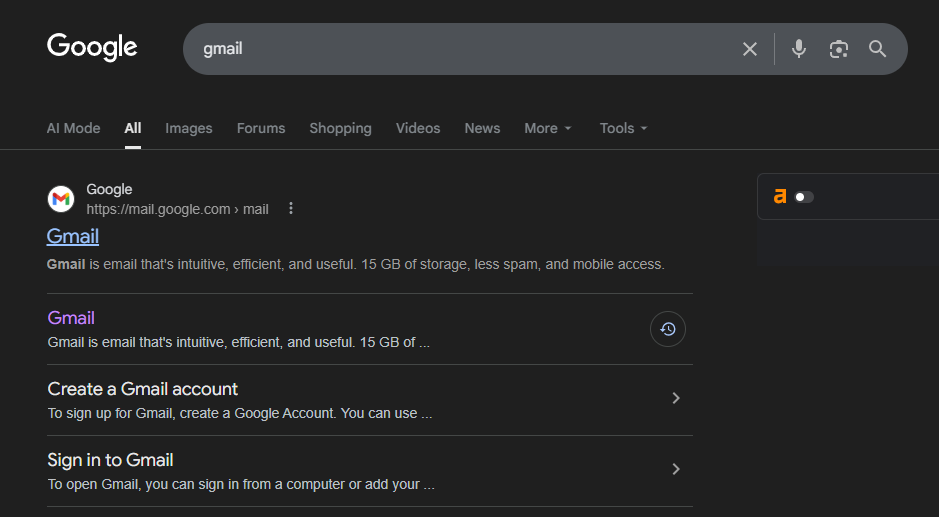
- Open Gmail in your browser
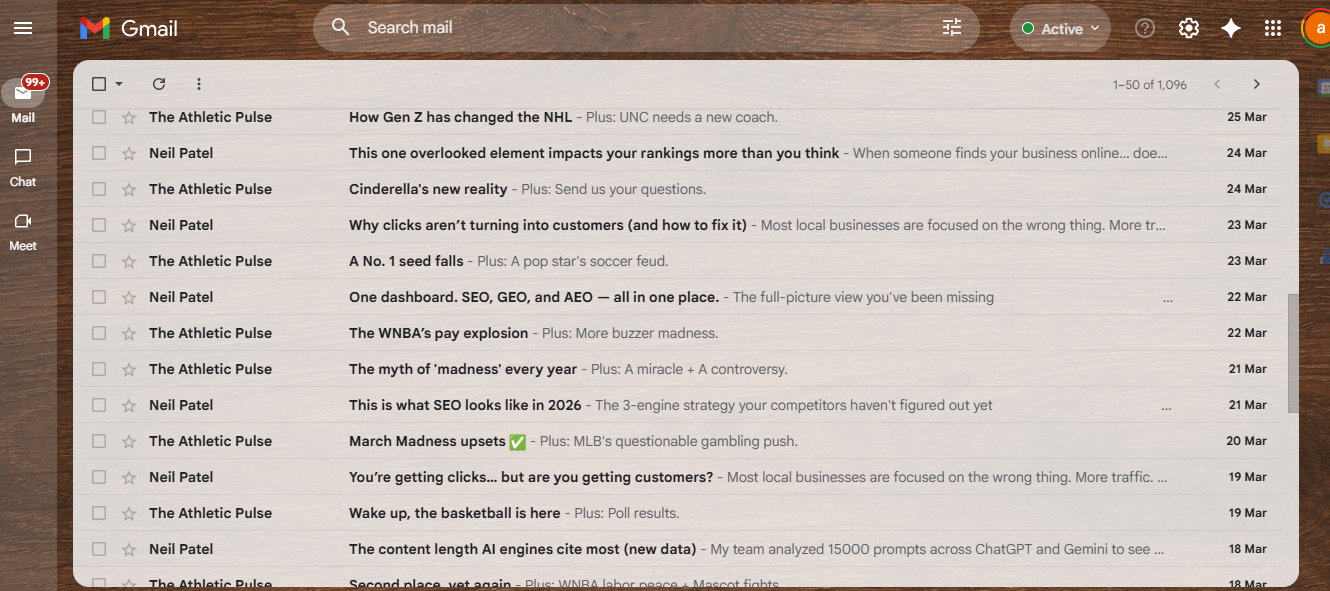
- Click the gear icon (top right) → See all settings
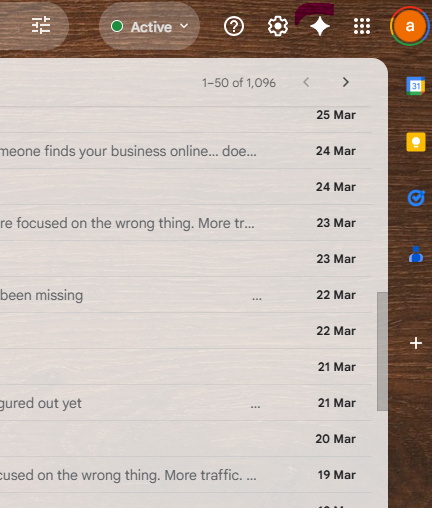
- Tap “See all settings”
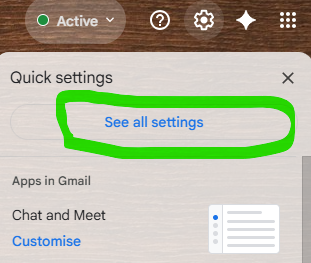
- Go to the General tab
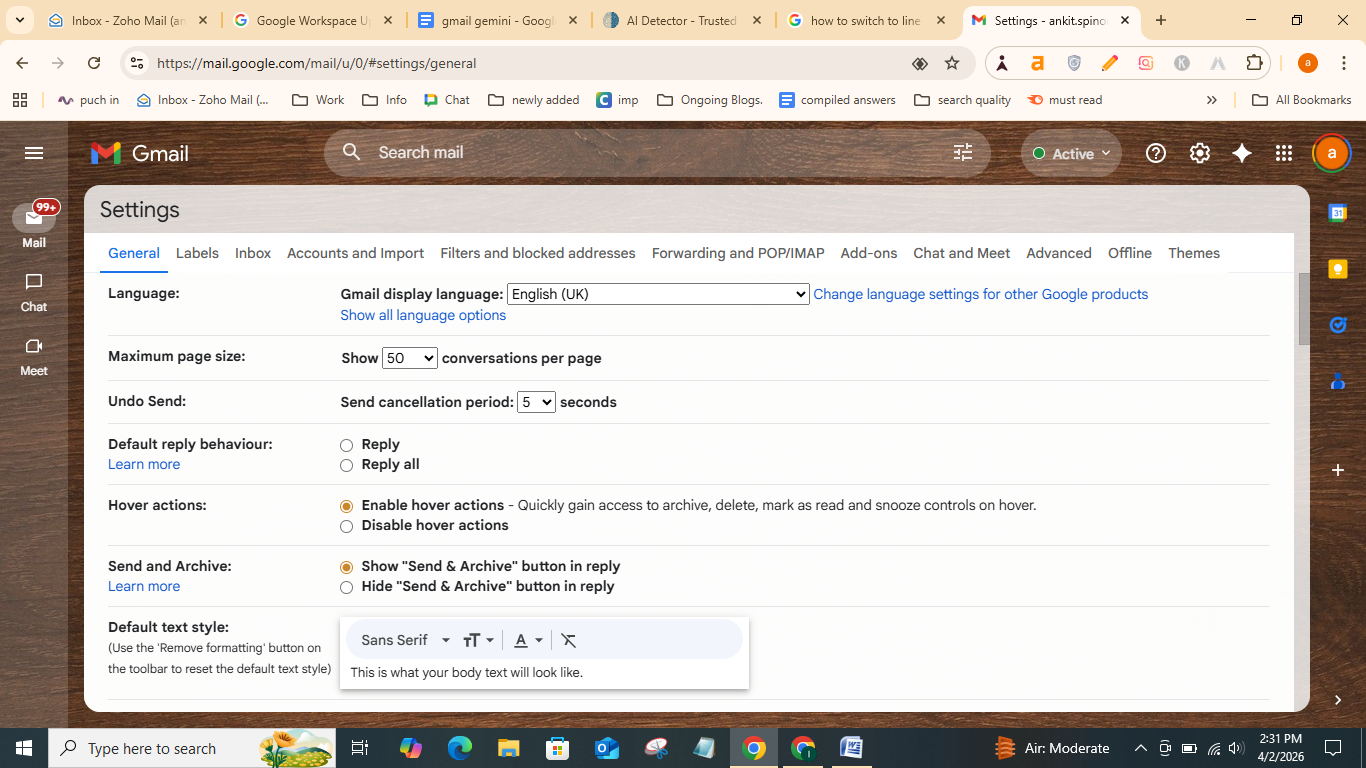
- Scroll down to “Google Workspace Smart Features” and click “Manage Workspace smart feature settings”
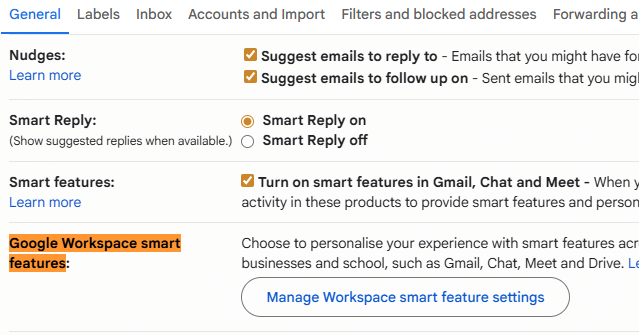
- Uncheck the box next to Smart Features
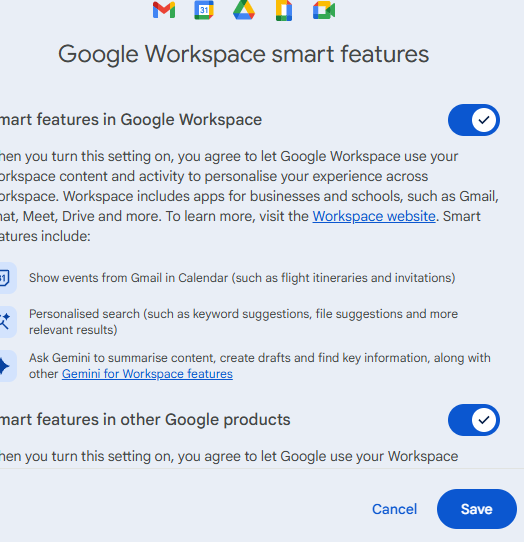
- Click Save
You’ll know it worked when the AI star on the search bar reverts to a plain magnifying glass icon.
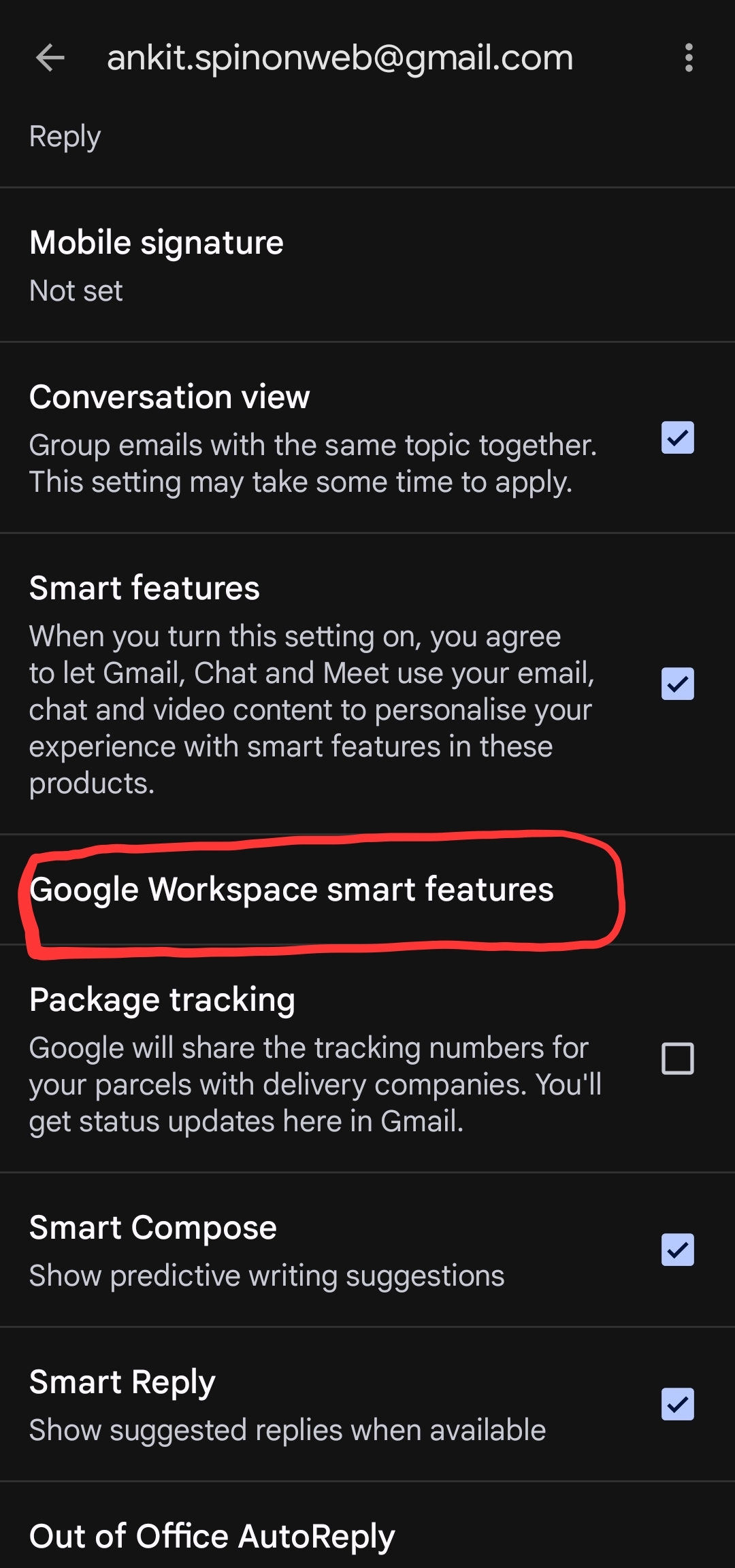
On Mobile (Android/iPhone)
- Open the Gmail app
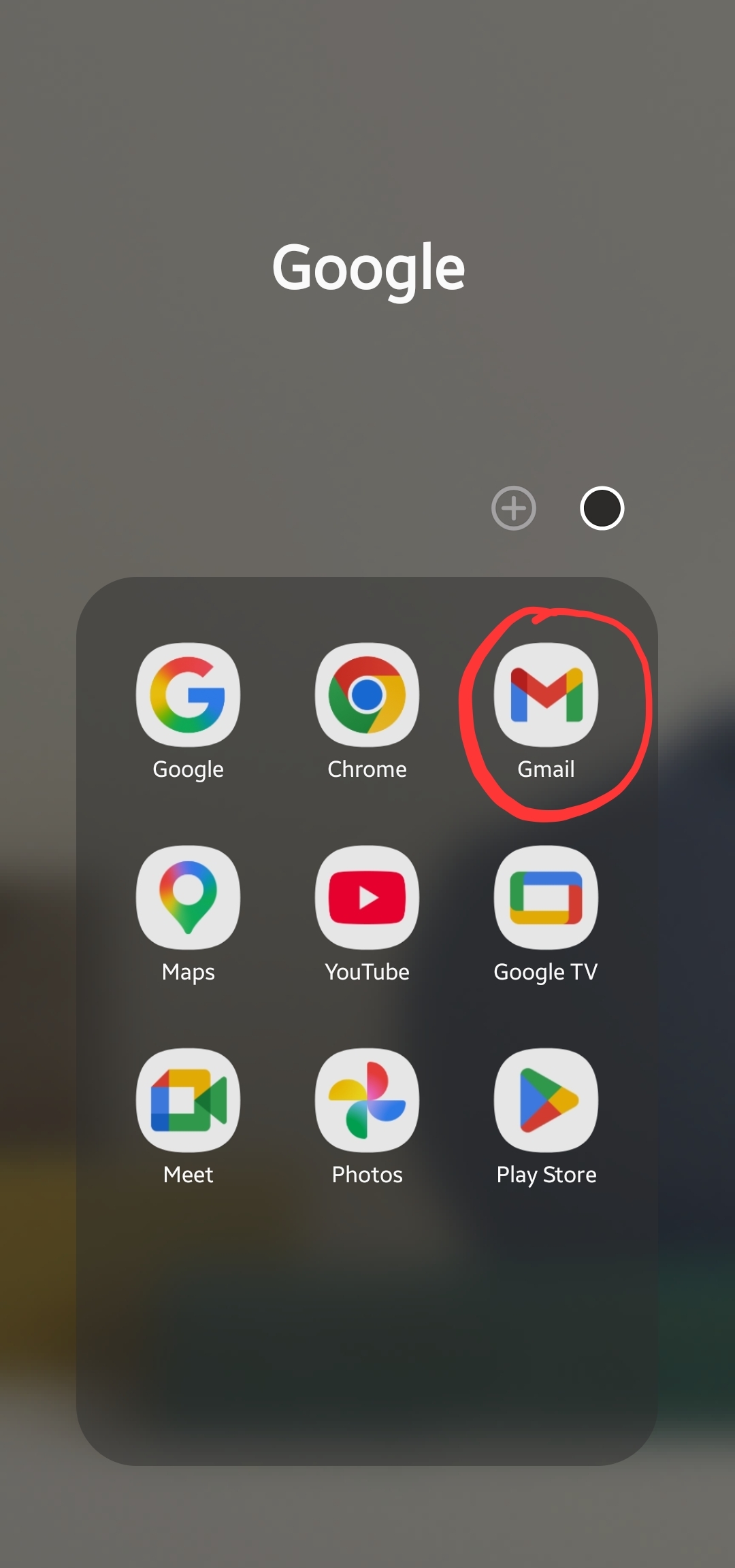
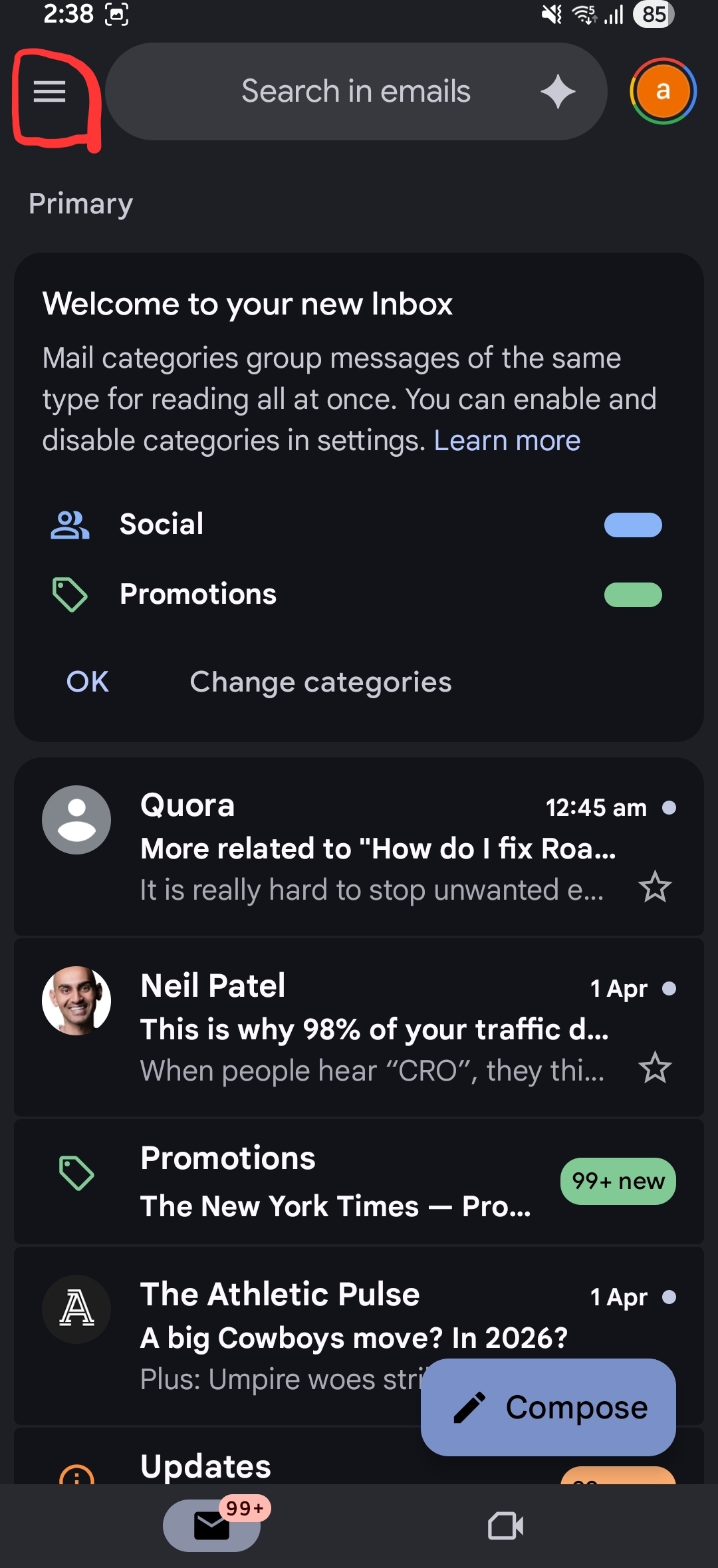
- Tap the hamburger menu
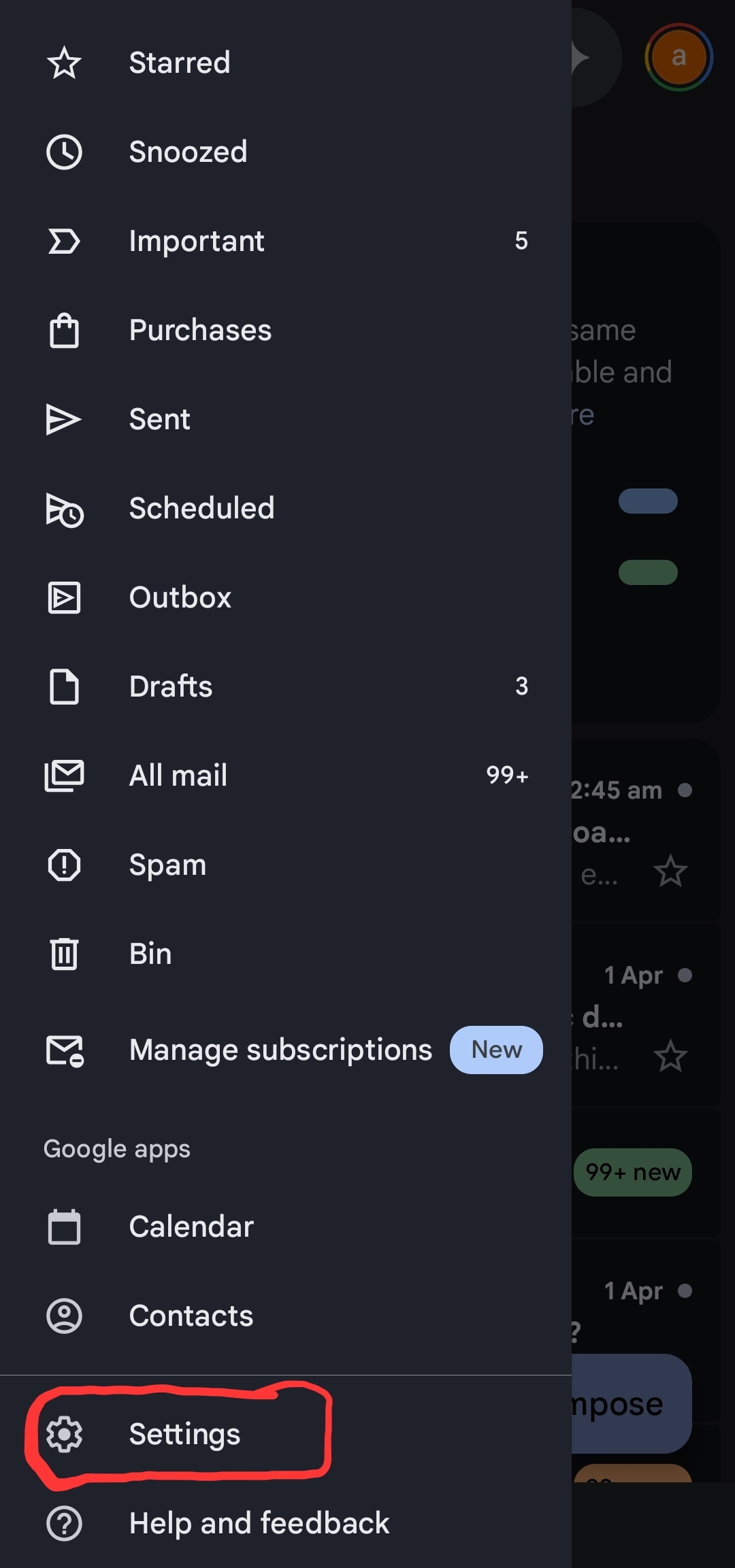
- Click the Settings
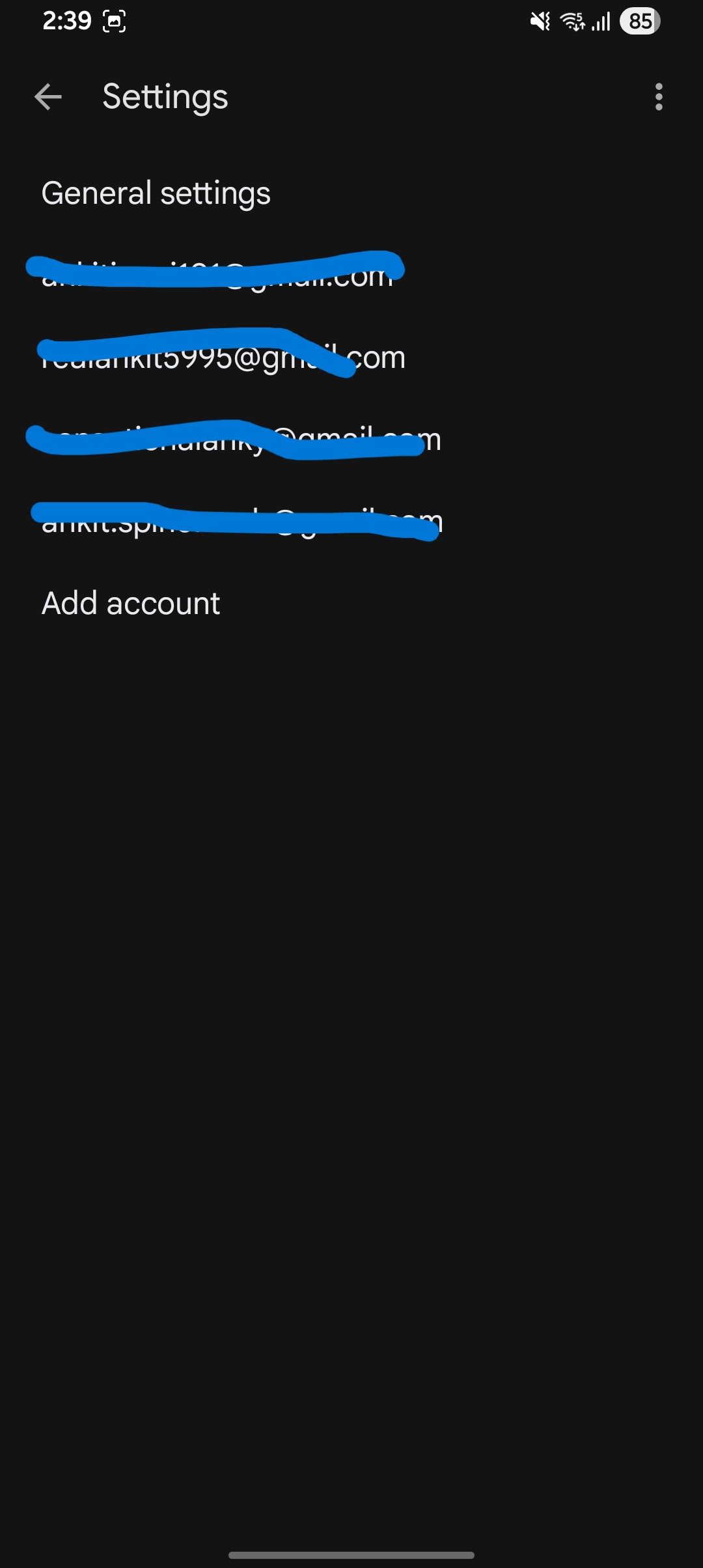
- Select your email account
- Tap Google Workspace smart features
- Uncheck the box next to Smart Features in Google Workspace
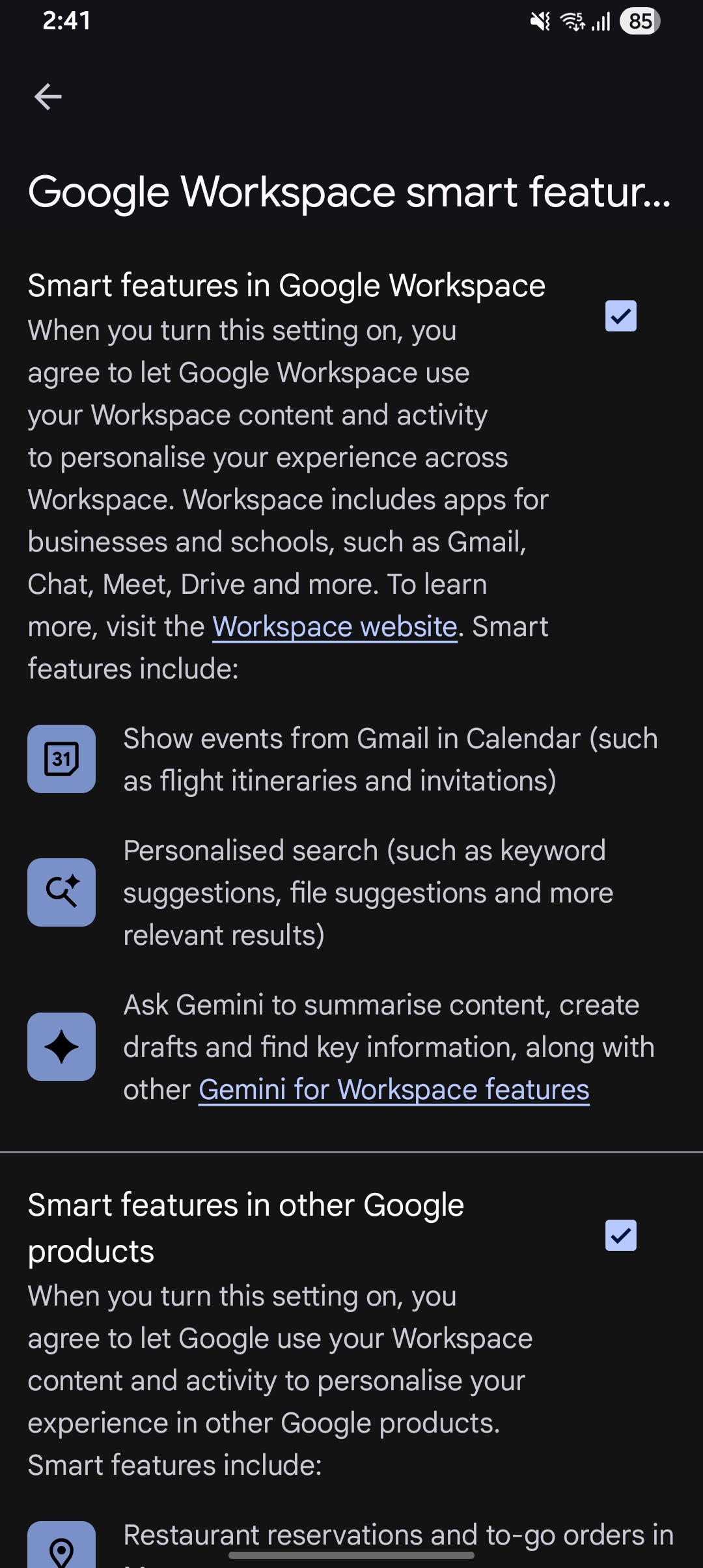
Important note: Disabling Gemini AI features also turns off spell check, auto‑correction, desktop notifications, package tracking, and Gmail’s category tabs (Primary, Promotions, Social). This is how Google bundles these features in 2026, and it’s a known trade‑off many users accept to reduce AI‑assisted summaries.
If you use a work or school Google account, your IT administrator controls these settings. You may not have the option to turn it off yourself, so contact them.
For Email Marketers: How to “Fix” Your Emails for Gemini
Disabling Gemini isn’t an option for marketers. Instead, your recipients can do that. What you can control is how Gemini reads and summarizes your email.
1. Your First 200 Characters Are Your New Preheader
The traditional preheader (the grey preview text after the subject line) was designed for ~90 characters. That’s no longer enough.
Gemini pulls from the actual email body, not the HTML preheader meta tag. So your first sentence needs to do two jobs: hook the human reader and feed Gemini a clear summary.
Let’s understand how a good and a bad email opening looks like:
- Bad opening: “Hey Sarah! We’ve got something exciting to share with you this week…”
- Good opening: “Your 30% discount on [Product] expires Friday. Use code SAVE30 at checkout.”
The second version gives Gemini exactly what it needs to generate a useful summary — one that helps your email, not hurts it.
2. Use Structured Formatting Inside the Email
Gemini responds well to clear structure. Use H2 headings and bullet points inside your email body. When Gemini looks for “key takeaways,” it scans for visual hierarchy.
If your email has a section titled “What’s included in your plan” followed by three bullet points, there’s a high chance Gemini will pull those bullets into its summary. That’s free, accurate summarization — working in your favor.
3. Email Schema Markup (Advanced)
Google supports Email Message Schema — a structured data format you can add to your HTML email to explicitly tell Gmail (and Gemini) what your email is about. It’s the same concept as Schema.org markup for SEO.
This is mostly used for transactional emails (order confirmations, event RSVPs), but forward-thinking email developers are beginning to use it to “hint” at the intended summary. It won’t give you full control, but it’s the closest thing to influencing the AI output at a technical level.
Gemini AI Summary vs. Standard Email Preview: What’s Different
What a Gemini summary and a standard email preview look like:
| Feature | Standard Preview | Gemini AI Summary |
| Length | ~90 characters | 140+ characters |
| Source | Start of email body | Entire thread context |
| Accuracy | Literal (what’s written) | Interpreted (AI-generated) |
| Marketer Control | High (preheader tags) | Low (AI-driven) |
| Shows action items | No | Yes (deadlines, to-dos) |
The biggest shift is the source. A standard preview is dumb because it just shows what’s there. Gemini is making an interpretation. That interpretation can help or hurt your email, depending on how well-structured your content is.
FAQ: Gmail Gemini AI Email Summaries
Can I turn off Gemini summaries on mobile only?
Yes. The steps are account-specific, not device-specific. Turning it off in the Gmail mobile app applies to your account across devices. Follow the mobile steps listed above.
Does the 140-character rule apply to plain text emails?
Gemini processes plain text emails the same way — it reads the full thread for context. However, plain text emails lack headings and bullet points, so Gemini has less structured data to work with. The AI summary may be less accurate or useful for plain text sends.
Will turning off Smart Features affect my email categories?
Yes. As of 2026, Google bundles the Promotions/Social/Primary category tabs with Smart Features. Disabling one disables the other. This is one of the most common complaints in user forums, and Google has not yet offered granular controls — though many users have submitted feedback requesting them.
I use a Google Workspace account at work. Can my IT admin re-enable summaries for everyone?
Yes. Google Workspace admins can enable or disable Gemini organisation-wide via the Admin Console → Generative AI → Gemini → Service Status. Individual user settings are overridden by admin-level controls.
Does disabling Gemini AI summaries affect my privacy?
Turning off Gemini AI summaries is effectively an opt‑out from some AI features, but Gmail’s overall data‑handling and privacy practices still follow Google’s Privacy Policy. Disabling Smart Features reduces how much Gemini can summarize or generate from your inbox, though basic email storage and standard Gmail features remain unchanged.
Bottom Line
Gmail’s Gemini AI summary is on by default and affects how your emails are read — whether you’re the sender or the recipient.
If you’re a user who finds the summaries intrusive or is concerned about privacy: turn off Smart Features in Settings. Accept the trade-offs (no spell check, no category tabs) or submit feedback to Google requesting granular controls.
If you’re a marketer: you cannot control what your recipients see. But you can write emails that work with Gemini — front-loaded value propositions, clear structure, and intent-signaling language in the first 200 characters. For more on how poor click‑throughs can affect deliverability, see our guide on Gmail Error 550 5.7.26: The 2‑Minute Fix for RR.com & Spectrum Bounces.
Gemini’s AI‑assisted summaries are now standard in Gmail 2026, so the best strategy is to write your emails so Gemini highlights your CTA instead of spoiling it.