

If you notice your Peacock app not loading on iPhone, then that’s because of multiple reasons. The app may be stuck due to poor internet, have caches, incompatibility of device, or it may be a server error. All of these or any one of them could be holding you back. In this guide, we will help you fix that. Know the quick steps to fix the error.
The “Quick-Start” Solution
Initially, if you notice your Peacock App is having trouble launching, you can try a few quick fixes. These include:
- Rebooting the device
- Force-closing the app
- Updating your device or the Peacock app
- And, checking the current status of your streaming service
Why is Peacock Not Loading? (Common Errors)
The most common causes behind the Peacock app’s functionality are either an unstable network, a compatibility issue, or external interference, such as a VPN. We will discuss them here:
- Network Instability: The first thing you should notice is your network strength. You might be having an internet error, which triggered the app’s functionality. The network strength of less than 5 Mbps (HD) or 20 Mbps (4K) is likely a problematic thing.
- Compatibility Shifts: Another cause is the compatibility concern between your device and the Peacock streaming app. If you’re using older iPhones (pre-iPhone 8/X), you may face issues oftentimes.
- Corrupt Cache: Anywhere your Peacock App is not making things difficult for you. You must be facing a clog within the app, and that’s because of corrupt caches, which are holding you back. These caches increase the loading time of your app on the device, and because of that, you see the loading option in your app.
- VPN Interference: If you try accessing the Peacock app outside of your location using the VPN services, the app loading is sure to happen. Peacock now blocks active VPNs by default.
How to fix Peacock App not loading on iPhone (Step-by-Step)
These tried & tested steps may help you fix the Peacock App’s dysfunction.
1. Force close the app:
The first safe and quick way is to shut the app by force-closing it. This option will cease the app for sometimes (until you keep it normal), which will help regain your Peacock app on your device. That’s a common way to fix the issue.
How to do it: Swipe the iPhone screen from the bottom and pause in the middle of the screen. Then, swipe left to find the app you want to force close. Swipe up on the app’s preview card to force it to quit.
2. Put your device in Airplane mode:
Interrupting your device’s internet is another useful way to tackle unnecessary Peacock loading. Just enable Aeroplane mode on your device.
How to do it: It’s in the settings app. Just swipe down the iPhone screen to open the Control Centre. You will see the Airplane mode icon. Press the icon, and your network is not shifted to Airplane mode.
3. Restart your App:
Another zero-cost option is to restart the Peacock app. When you re-launch the app, it flushes out previously held data or cache and starts fresh. Restarting is a way to restore your app’s functioning.
4. Check internet speed:
An internet connection is the utmost thing for the smooth functioning of Peacock. What you need to focus on is placing the router close to your device. This will help your device catch the network better and function properly.
How to check: You can easily check your current internet speed online. Visit the browser, search for “internet speed test,” and click anywhere from 1 page. Just tap the “Go” icon. Within a minute, you can see the current speed on the screen.
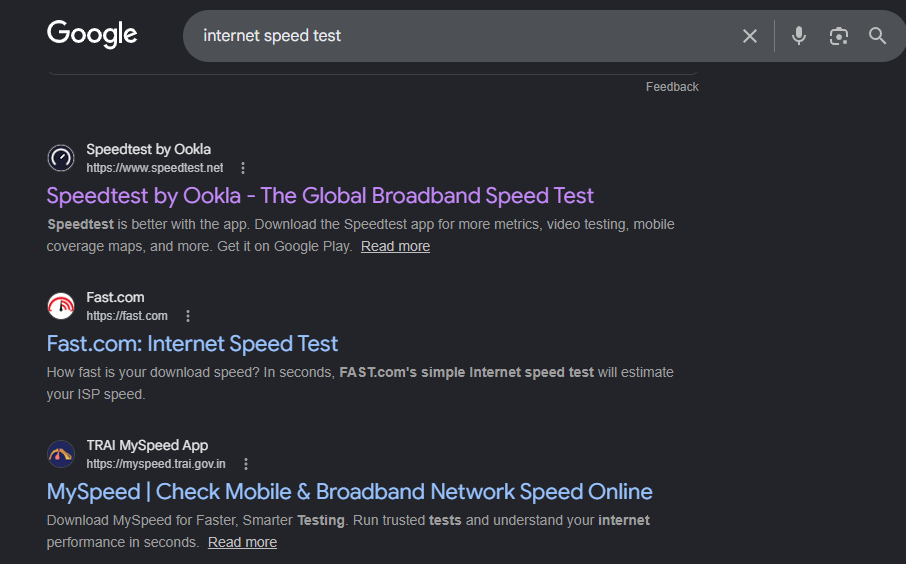
Checking current internet speed to troubleshoot Peacock app loading issues
5. Check if Peacock server is down
One common issue with Peacock is that it might be down for everyone. In such a case, you may experience trouble because the service is not working now. To find out if the Peacock server is interrupted, you can visit downdetector. Search for “Peacock”, and you will get the current status.
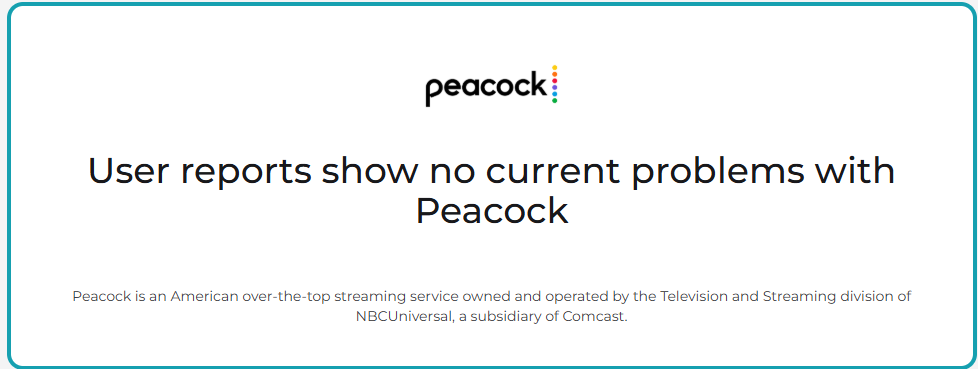
Checking the real-time server status of Peacock TV to rule out widespread outages
If server error is your culprit, you can just wait, but you cannot do anything about it.
6. Disable Adblocker or VPN:
If you use external services like VPN or AdBlocker to see if your Peacock works well, then it’s a misconception. Turn off VPN or adblocker while streaming on Peacock. This is easy.
- Visit the Chrome.
- Click the VPN icon (top right)
- Select toggle off.
7. Update & Reinstall
You can update your Peacock app. This will become easier for the compatibility of your device and the Peacock app. Or, if needed, uninstall the app from the app store.
Note: Uninstalling the app will not erase your data; you can still sign in to your account easily and restart using it.
To update/reinstall Peacock:
- Visit the Apple Store or App Store.
- Search ‘Peacock’.
- Tap: Update (if you want to update), or Install (if you want to reinstall).
When to Contact Support
If none of these steps works, you might be facing an account-level block or a specific geographic error like OVP_00012. This error usually triggers if the app thinks you are using a VPN or are outside the US (since Peacock’s international deals have become much stricter as of 2026).
Visit the official Peacock Help Center for a live chat. Let the technician know what you’re facing. This will help resolve the issue. Mention if you see specific codes so the technician can “reset” your account’s location signal on their backend.
Frequently Asked Questions:
1. Why is Peacock not working on my iPhone?
The unstable internet (mostly below 5mbps), corrupt app cache, compatibility error, and VPN errors are the major reasons why Peacock is not working on your iPhone.
2. Is there a problem with the Peacock app today?
As of today, there is no user report on the Peacock outage. You can further enquire online at downdetector.com.
3. Why is Peacock taking forever to load?
If the Peacock app is still loading, your internet is slow, the server is down, or a bug is preventing the app from loading.
4. How do I clear the cache on Peacock?
- Just visit the Peacock app.
- Open settings
- Select apps
- Tap ‘clear cache on Android’
Conclusion
Fixing Peacock on an iPhone in 2026 is easier and possible when you focus on the connection between the app and the iOS ecosystem. By ensuring you are running on fast internet, the app’s cache is cleared, the server is working, and other interruptions are handled well, you can restore the app’s functioning. Check each option and see which one works for you. You can tell us your experience in the comments below, so others can benefit too. If you want to know the cancellation steps for your streaming, or anything to fix the service, read our blogs.