
If your Starlink internet is cutting out, lagging, or dropping your Zoom calls during a storm or due to nearby trees, you are not alone. This guide is built for everyday US home users to help you understand why your satellite dish is struggling and how to get your home Wi-Fi back to normal. We will show you simple, step-by-step methods to clear up your signal and keep your extra mesh routers running fast.
What This Problem Looks Like
When your satellite internet starts having trouble, you will usually notice it on your phone, TV, or inside the official Starlink app. Here is what you might see:
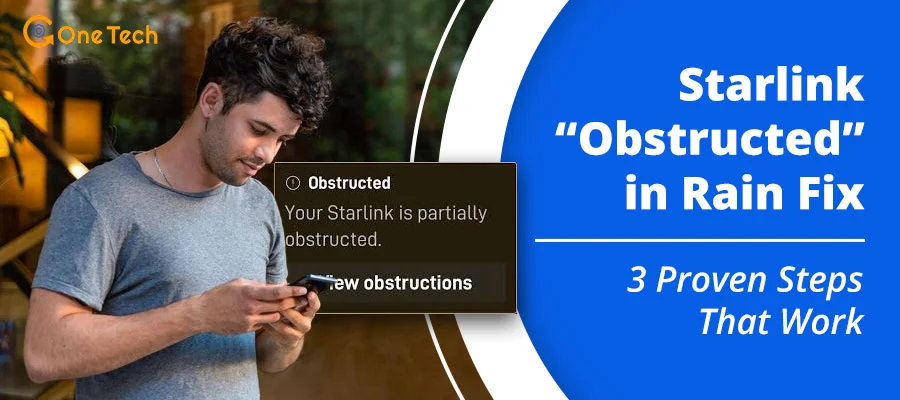
- The Starlink app displays a red or orange warning that says “Obstructed” or “Poor Connection.”
- Your online video games suddenly freeze, or your streaming movies pause to buffer (this happens because of latency drops, which means the time it takes for data to travel from your house to space and back becomes way too slow).
- The app shows frequent micro-outages lasting from 2 seconds to several minutes.
- Your main Starlink router looks fine, but the extra mesh satellites (the secondary Wi-Fi boxes placed around your house to extend the signal) show a pulsing light or say “Weak Signal” in your network settings.
- Your internet speed drops to almost zero when heavy, dark rain clouds pass directly overhead.
Why This Can Happen
Satellite internet is amazing, but it relies on a clear view of the open sky. When things get in the way, the system struggles. Here are the most common reasons why this happens:
- Physical Obstructions: Tree branches, roof lines, chimneys, or even power lines can block the line of sight between your dish and the satellites moving across the sky. Even a single leaf blocking the view can cause an obstructed status.
- Weather Patterns (Rain Fade): Heavy rain or thick snow clouds hold a lot of water. This water absorbs and scatters the radio signals coming down from space, a common pattern that network communities call severe rain fade. When this happens, data gets lost in the clouds, causing your connection speed to drop sharply.
- Mesh Node Placement Issues: Sometimes the issue isn’t the sky, but how your indoor Wi-Fi boxes talk to each other. If a secondary mesh router is too far away from the main Starlink router, or if it has to blast its signal through thick concrete walls, it can experience massive latency drops on mesh satellites. This means the boxes get confused and temporarily lose track of your devices.
- Wireless Frequency Confusion: Your devices might be jumping between the 2.4GHz Wi-Fi band (the older, longer-range but slower wireless signal) and the 5GHz Wi-Fi band (the newer, faster but shorter-range wireless signal). This is often related to a router feature called band steering, which tries to force devices onto the best signal but sometimes causes them to drop offline instead. When your devices show a solid Wi-Fi icon but have no actual internet connection, it is often due to this kind of local router confusion.
Step-by-Step Fixes
Work through these steps in order. Start with the easiest physical checks before changing any software settings on your phone or router.
Step 1: Check the Starlink App Obstruction Tool
The very first thing you should do is see exactly what your dish can see.
- Open the Starlink App on your smartphone.
- Tap on the Obstructions tab.
- Look at the 3D map of the sky. Any red dots you see represent real objects (like a tree branch or your roof) blocking the signal.
- Do this: If you see red areas, you must physically move the dish to a higher location, like a roof mount or a pole, to clear those specific blocks.
Step 2: Clear Snow, Ice, or Dirt off the Dish
Physical debris on the face of the dish acts just like a thick cloud or a tree branch.
- Check if your dish has heavy dirt, wet leaves, or bird droppings on it.
- If it is winter, make sure the automatic heater is turned on in the app (Settings > Starlink > Snow Melt set to “Automatic”).
- Warning: Never scrape the dish with a sharp tool. Use a gentle stream of water or a soft cloth if it is safe to reach.
Step 3: Move Your Indoor Mesh Satellites Closer Together
If your main Starlink dish has a clear view of the sky, but your internet is still lagging inside the house, your indoor mesh boxes might be struggling to talk to each other.
- Make sure your secondary mesh satellites are no more than two rooms away from the main Starlink router box.
- Keep mesh boxes out of closets, away from big metal appliances (like refrigerators), and off the floor. Placing them on a shelf or tabletop works best.
- Open the Starlink App, tap on Network, and check the connection line between your main router and mesh nodes. If it says “Poor,” move the mesh node closer until it turns green.
Step 4: Reboot Your Whole Network the Right Way
Sometimes the electronic brains inside your equipment get confused. A simple reset forces them to clear their memory and search for a clean connection.
- Unplug the main power cable from your Starlink wall outlet.
- Unplug all of your extra mesh router satellites around the house.
- Wait a full 60 seconds to let all the electrical power drain out completely.
- Plug the main Starlink power cord back in first. Wait 3 to 4 minutes for the dish to point itself toward space and connect.
- Plug your indoor mesh satellites back in, one by one.
A clean network reboot can also resolve strange, sudden app errors that crop up when your IP address changes unexpectedly after a micro-outage. For instance, some satellite users notice email sync errors like the Yahoo Mail Error 19 on Starlink connections right after a signal drop. Refreshing your system fixes the background miscommunication causing these app lockouts.
Step 5: Separate Your 2.4GHz and 5GHz Wi-Fi Names
By default, Starlink mashes your long-range (2.4GHz) and short-range (5GHz) wireless signals into one single network name. This can cause your phone or smart TV to rapidly flip back and forth, creating major slowdowns.
- Open the Starlink App and go to Settings.
- Tap on Router, then select Network Name.
- Look for the toggle switch that says “Split 2.4 / 5 GHz Networks” and turn it on.
- Give them two separate names (for example: “HomeNet_2.4” and “HomeNet_5”).
- Connect your gaming consoles and streaming TVs to the 5GHz network for the fastest speeds, and leave older smart home gadgets on the 2.4GHz network.
Step 6: Consider a Wired Ethernet Connection
If heavy rain or bad trees are constantly causing your wireless network to struggle, you can skip the air entirely by using a physical cable.
- You can purchase the official Starlink Ethernet Adapter online.
- Plug a standard Ethernet cable directly from the adapter into your main computer, smart TV, or third-party mesh router system (like an Eero or Netgear Orbi).
- A physical wire stops your indoor devices from dropping connection, even when the dish outside is fighting through a brief cloud fade.
US-Specific Context
Living in the United States means your satellite internet experience depends heavily on where you live. For example, if you live in the heavily wooded Pacific Northwest or rural parts of the East Coast, trees are your main enemy. You will almost always need to install your dish high up on a roof mount to avoid an obstructed status.
If you live in areas prone to sudden heavy downpours, like Florida or the Gulf Coast, you will experience severe rain fade more often than someone living in desert areas like Arizona. Unlike standard US cable internet (like Xfinity, Spectrum, or Cox) or fiber internet (like AT&T or Verizon Fios) which run underground through protected cables, Starlink has to travel through miles of open air. Similarly, users running wireless alternatives like T-Mobile Home Internet often see speeds slow down at night due to local cell tower traffic, showing how all wireless setups face unique local challenges.
Furthermore, because Starlink relies on a dynamic, rotating pool of IP addresses to connect your home to the web, certain smart TV apps might get confused about where you actually live. This is very similar to how users hit a Hulu home device limit on 5G home internet setups because the network occasionally changes your virtual location. Keeping your mesh satellites updated helps your video streaming apps track your home network layout more smoothly.
When You Should Contact Support
Most of the time, you can fix these issues yourself by adjusting your hardware. However, you should reach out to official support channels if you notice the following:
- Contact Starlink Support via the app if your dish completely refuses to tilt or move automatically when turned on. This usually points to a broken internal motor.
- Contact Starlink Support if you notice visible tears, cracks, or deep scratches on the outer surface of the dish or if the cable connectors have rusted out.
- Contact your third-party mesh router maker (such as Linksys, Netgear, or Amazon Eero) if your main Starlink internet is working perfectly when you stand next to it, but your extra mesh nodes refuse to connect or sync up even when placed in the same room.
- Safety Note: Do not ever try to cut open the plastic shell of your Starlink dish or modify the internal power wiring yourself. This carries a risk of electrical shock and will instantly void your warranty.
Frequently Asked Questions (FAQ)
Does rain affect Starlink internet speeds?
Yes. Light rain won’t change much, but heavy downpours can block the satellite signals in the sky. This can cause brief speed drops or short outages until the heavy storm clouds pass by.
How much clearance does a Starlink dish need?
Starlink needs a wide, cone-shaped view of the northern sky (or southern sky depending on your exact US location). It needs roughly a 100-degree clear view with absolutely zero tree branches or roof edges in the way.
What does “Latency Drops on Mesh Satellites” mean?
This means your secondary wireless internet boxes inside the house are taking too long to send data back to the main Starlink router box. It usually happens when the nodes are too far apart or blocked by thick house walls.
Can I paint my Starlink dish to match my roof?
No, never paint your Starlink dish. The chemicals and metallic properties in standard household paint will block the satellite signals entirely and ruin your equipment.
How do I know if trees are blocking my Starlink?
Open the official Starlink app on your phone and run the “Check for Obstructions” tool. It uses your phone’s camera to scan the sky and will show you exactly which branches need to be trimmed.
Should I turn off my Starlink during a bad thunderstorm?
You do not need to turn it off for normal rain. However, if there is a severe lightning storm right over your house, unplugging the main power block from the wall can protect your expensive electronics from power surges.
Quick Summary of Fixes
Fixing connection drops on your satellite internet usually comes down to keeping things clear and close. Remember these key points:
- The ultimate fix for an obstructed status is moving your dish higher up to get away from trees and roofs.
- Indoor drops are most often fixed by simply moving your mesh satellites closer to the main Starlink router.
- When the weather gets terrible, keep your home network setup as simple as possible, use a wired wire connection where you can, and wait for the storm cell to move on.