
You might be wondering how you can reactivate your YouTube TV subscription without ever losing your reserved DVR recordings. This place is perfect for you. You just need to remember a few things to see your saved DVR recordings as it is after renewing your account. These are:
- Create a calendar and set it to check whether the 9-month grace period is going to end for pausing.
- Access your DVR recordings before the time period. Otherwise, they will be lost for a permanent basis.
The above key considerations are very important if you don’t want to lose your DVR recordings. Rest, we have covered in this comprehensive guide. Read on.
Essential Prerequisites Before Reactivating Your Account
These are the required prerequisites that will help you to prepare before resuming your YouTube TV account.
- Make sure to check that you are using the appropriate Google account. It will ensure that your DVR recordings’ show preferences are already saved.
- Consider using a valid debit card, credit card, or PayPal account. By doing so, the billing period can effectively restart at the same time when you tap the Resume button.
- Confirm whether your account is currently canceled or paused. Moreover, if it is still paused, you can smoothly reactivate it through youtube.com.
- Make sure that you run the advanced version of YouTube TV on your preferred device. If not, update it to fix all the temporary bugs.
- Be sure you are using a stable internet connection.
- If you are resuming the subscription through your phone, check whether your targeted device is using the same WiFi network as your TV.
- Consider setting up the home location area. So that you can confirm your home zip code, make sure to get back the correct local networks.
- There might be a chance that you may need a tablet, smartphone, or computer to move towards tv.youtube.com/start page. It just requires the activation code that appeared on your TV screen.
Step-by-Step Web-Based Reactivation Guide
Here, we will define two different methods to do so, on a web-based platform and through your smartphone.
Method 1: Desktop Browser Reactivation
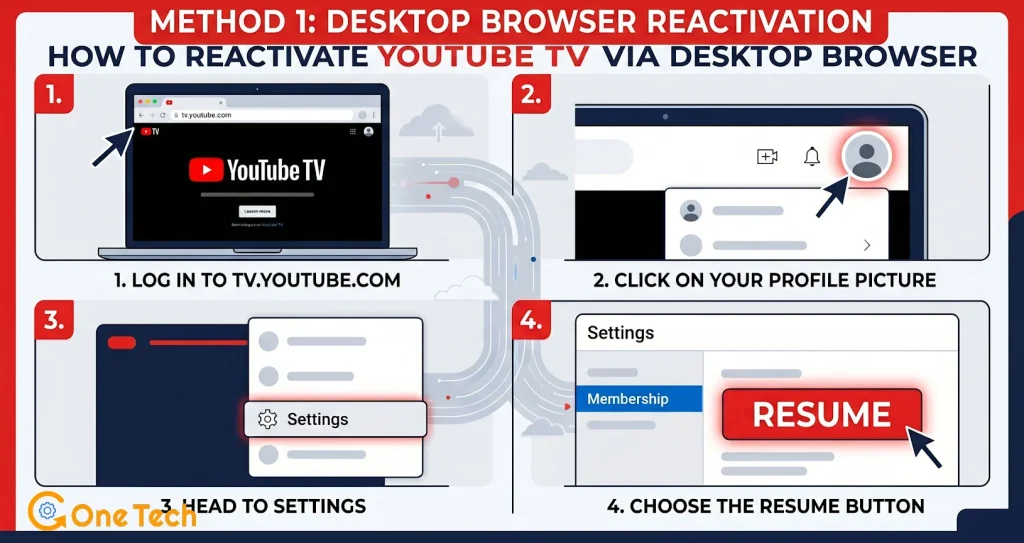
These are the instructions that will help you to reactivate your YouTube TV.
- Log in to tv.youtube.com.
- Click on your profile picture.
- Head to Settings.
- Move towards Membership.
- Choose the Resume button.
By clicking on this button, you will see that your YouTube TV subscription has reactivated from your desktop browser.
Method 2: Mobile App Resume
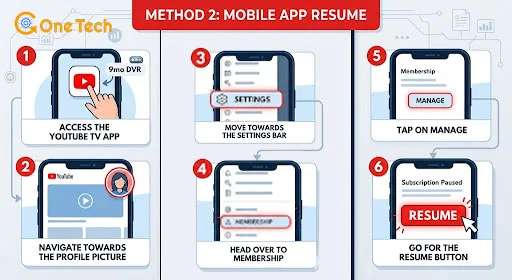
Here, we will use the mobile app resume approach. In this technique, you need to install the YouTube TV app on your smartphone.
- Access the YouTube TV app.
- Navigate towards the Profile picture.
- Now, you need to move towards the Settings bar.
- Head over to Membership.
- Tap on Manage.
- Go for the Resume button so that you can easily reactivate your subscription.
Key Points to be Noted!
- Whenever you tap on the Resume button, the day will count as the new payment date.
- Once you have resumed the subscription, you can easily get access to your preserved DVR recordings library.
- If you don’t manually reactivate your subscription, your paused YouTube TV account will automatically be resumed on the date when you last chose.
What Are the Challenges That Users Face With YouTube TV Reactivation?
Let’s take a look at these challenges while reactivating your YouTube TV subscription.
- Declined payment methods.
- ZIP code mismatches.
- Failed auto-renewal payment, which leads to service gaps.
- Attempt to log in to another Google account.
- Application glitches on your Smart TVs.
- You are using outdated software.
- Previous DVR recordings or customized settings disappeared.
Understanding Cloud DVR Storage and Retention Policies
First, we will discuss the Cloud DVR storage. After that, you can jump on the retention policies.
Cloud DVR Storage:
YouTube TV offers you unlimited storage for Cloud DVR. With this, users can effortlessly record an infinite number of programs that can easily be stored for up to 9 months. So, when you renew your YouTube TV subscription before the certain grace period, your DVR recordings will appear within your library.
If the time period has already passed, your DVR recordings will be permanently deleted by YouTube TV itself. Besides this, you can easily access them through your mobile, the web, and your smart TV. Make sure you have the YouTube TV app and a good internet connection to view all the recorded programs.
Pro Tip! If you have taken the subscription plan, the YouTube TV family plan, all the watch history, recorded DVR videos, and show recommendations, they will remain separated.
Retention Policies:
Now, it’s high time to describe the retention policies to clear all your doubts.
- If you log in again to YouTube TV by using the same credentials within 28 days of the last effective date, you will be able to restore your preferences, settings, and DVR library. However, your DVR recordings will be kept for up to 9 months, where you are not allowed to record any new show program during that period of time.
- If you resubscribe after passing 28 days, your YouTube TV account will be considered a new one, not the previous one. Moreover, account settings and preferences will be lost.
- Consider opting for your web browser instead of the mobile app to reactivate the subscription smoothly.
- When you renew the subscription plan, the day will become your new payment due date.
Pause vs Cancel: Key Differences for 2026 Subscriptions
Let’s discuss the difference between pausing and canceling the YouTube TV subscriptions in a tabular format.
| Feature | Pause Subscription | Cancel Subscription |
| Access During Paid Period | You can easily have access until the end of your existing billing cycle. | Users still have access when their current billing cycle is going to end. |
| After Paid Period Ends | YouTube TV’s service has been discontinued. Moreover, you are not allowed to stream live TV or record any new shows. All your previously recorded DVR footage will be saved. | Cancelling the subscription completely ends its services. Plus, you will lose access to recordings, live TV, and account setup |
| DVR Recordings | Saved during pause. Once you continue the subscription, all your previously reserved recordings are available. | It will be deleted on a permanent basis. Plus, while canceling, it wipes your DVR library, and you won’t be able to restore your recordings. |
| Billing Impact | Billing will be paused. Plus, there are no charges until you resume the subscription. Remember that the subscription period will automatically be resumed after the pausing period you resume. | Billing will be stopped permanently. To renew the membership plan, you need to sign up again as a new member. |
| Add-ons & Premium Channels | Saved, but they are inactive during the pausing period. | All add-ons and premium channels will be removed permanently. Plus, you need to purchase all of them after resubscribing to the plan. |
| Family Sharing | Family accounts will remain linked but not active. | Family accounts will be deleted. However, they must be re-added if you resubscribe. |
| Reactivation Process | It is easily accessible in pause settings. Your profile preferences and DVR recordings will return instantly. | It can be resubscribed from scratch. However, you will lose your account preferences and DVR recordings. |
Risks & Considerations!
- If you set a pause period for a specific time, your billing period will automatically be resumed after the specific time period you have mentioned. Don’t forget the date to easily reactivate your YouTube TV account.
- You will not get any access to DVR recording till you are on a pause period. However, you can only use them when the period is activated.
- If you cancel the subscription, there is no other way to recover your DVR recordings.
- The best use case for pausing is as listed below:
- You might want to take a temporary break. It either is from:
- Travel
- Budget control
- Seasonal viewing
- You might want to take a temporary break. It either is from:
Verifying and Syncing DVR Library Post-Reactivation
Have a look at how we verify and sync DVR libraries after post-reactivation.
#1. Reboot Your Streaming Devices:
- Remove the plug from the Roku, the TV, the Fire TV, or even the Apple TV.
- Keep the plug removed for at least 30 seconds.
By doing so, it will force a fresh connection.
#2. Sign Out and Again Sign In:
- Sign out of the YouTube TV application from all the installed devices.
- After some time, log in to the device again.
By executing the above steps, you will be able to refresh the account association.
#3. Install the YouTube TV App Again:
If you find that your app is encountering some issues, make sure to delete and install the application again to get rid of the syncing problems.
#4. Verify Your Location:
Go through the steps below:
- Navigate to Settings on your phone.
- Tap on Area.
- Choose the Current Playback area.
These instructions will help you to update your location on your phone.
Note! If there is inconsistent location data, it can lead to DVR recordings missing.
#5. Check “Movies” or “Shows” Filters:
On YouTube TV, “New for you” or “New in your library” is a limited, customized view that only lets you view recently captured, unseen episodes. Besides this, it doesn’t show you a complete archive list of everything that you have previously saved.
To View Your Full List or Everything:
- In YouTube TV, move towards the Library tab.
- Find out the filter drop-down at the top.
- Modify it from “New in your library” to “Shows” or “Movies.”
#6. Force Re-Recordings:
If you find that certain shows are missing, just navigate to their show page. Make sure that they are added to your YouTube TV library again. By doing this, the system will start recording them during the next scheduled broadcast.
Troubleshooting 2026-Specific Reactivation Errors
Now, we will elaborate on some specific reactivation errors that most users encounter.
- “Welcome Back” Loop: The YouTube TV app is not recognizing your renewed subscription. That is why users face the Welcome Back error pop-up on their screen.
- Fix: Execute and check these three main things to get rid of this error:
- Power cycle on your TV for a whole minute.
- Reinstall the YouTube TV application.
- Make sure to confirm whether the subscription is active or not.
- Fix: Execute and check these three main things to get rid of this error:
- Payment Method Failures: You have tried so many times to reactivate your subscription plan, but it has failed because you have used expired credit cards. There might be some technical issues with third-party billing providers, such as Roku or Apple, or you have entered incorrect billing addresses.
- Fix: You can try out these troubleshooting steps:
- Make sure to update your billing information at tv.youtube.com. Just navigate to Settings and then Billing.
- Renew your expiring credit cards.
- Verify your identity on Google Payments.
- Check sufficient balance.
- Or, try to change your credit card.
- Fix: You can try out these troubleshooting steps:
- QR Code Sign-in Failures: While attempting to renew your YouTube TV subscription on your TV, the visible QR code is not properly syncing with your phone. That is why users failed to sign in.
- Fix: To resolve this problem, you can:
- Restart your router and TV.
- Make sure to see whether the date and time are mentioned correctly.
- Manually type down the code that is mentioned on yt.be/activate.
- Clear the app cache.
- Reinstall your YouTube TV app.
- Fix: To resolve this problem, you can:
- “Area Not Supported” During Reactivation: YouTube TV fails to identify your home location while reactivating the subscription. However, it needs a GPS to properly sync.
- Fix: Execute this troubleshooting trick:
- Be sure to enable location services or simply GPS.
- Fix: Execute this troubleshooting trick:
Prevention Strategies for Future Subscription Pauses
These are some of the prevention strategies that you should follow. However, these can play a significant role whenever you pause the subscription in the future.
- Consider pausing the subscription instead of cancellation. It will help you to preserve your records and personalized preferences.
- Make sure to observe the expiration dates. However, after 9 months, your DVR recordings will be permanently removed, and it doesn’t matter whether your subscription is active or paused.
- Set a reminder 3 days before your scheduled resume date. As a result, it will help you to prevent automatic payments. By doing so, you can also extend the pausing period up to 9 months.
- Don’t use any third-party billing providers to avoid any payment errors.
Most Commonly Asked Questions and Answers
Our professionals have done deep research and spent around 2 hours collecting all the queries in one place that users mostly ask.
Q1. Does pausing YouTube TV delete existing DVR shows immediately?
Ans. NO! If you have paused your YouTube TV subscription, your existing DVR shows will not be deleted for up to 9 months from the actual scheduled date. However, you are not allowed to watch any DVR shows when you have paused the subscription.
Q2. What happens to recordings after the 21-day cancellation window in 2026?
Ans. After the cancellation, all your TV recordings will be permanently removed from your cloud DVR library. However, all your library preferences, such as user profiles and show recommendations, will be saved for the future. So, whenever you resubscribe, the data will get you back.
Q3. Why are my DVR recordings missing after reactivating YouTube TV?
Ans. It happens because your recording library reconnects after a subscription gap. As a result, it causes delays, or sometimes, it asks you to re-add all the DVR recordings.
Q4. How long does YouTube TV keep recordings during a paused subscription?
Ans. Your DVR recordings will stay for 9 months on YouTube TV from the actual effective scheduled date. After a particular time period, all data will be lost. Moreover, you can’t record any new episodes while paused.
Q5. Will changing my home area cause me to lose DVR during reactivation?
Ans. NO! If you change your home location, it does not cause any impact on DVR recording while reactivating your YouTube TV account. However, a YouTube TV account is linked with your Gmail account, rather than any physical location. Moreover, if you update your home location, all your previous recordings will be in your library.
Q6. Do recordings disappear if I reinstall the YouTube TV app after reactivation?
Ans, NO! Recordings will not vanish from your YouTube after reactivation, even if you have reinstalled it. However, DVR recordings are saved on the Google server, not on your local device’s storage.
Q7. Is the family manager profile required to restore all DVR recordings?
Ans. NO! Your family manager profile doesn’t require backing up all of YouTube TV’s DVR recordings. Keep one thing in your mind very clear that your YouTube TV account is linked to your Google account, not any family manager.
Q8. What happens if payment fails during the YouTube TV subscription renewal?
Ans. While clearing the payment of your YouTube TV subscription, your DVR recordings will be saved for a limited period of time, which is 30 days. For that specific period of time, all your accounts will be paused. And you are not allowed to maintain any record of the latest content or get access to your previous recordings.
Q9. How to force refresh a missing DVR library after unpausing in 2026?
Ans. Here are some effective ways that you can easily force refresh a missing DVR library.
- Force close your YouTube TV app.
- Execute a power cycle on your device.
- Remove and add the show again.
Q10. Are 9-month-old recordings safe when reactivating a paused account?
Ans. YES! Your old 9-month recordings are safe if they were recorded less than 9 months ago. Moreover, if you reactivate your YouTube TV account after that period, your previous DVR recordings will be gone.
Q11. Why does YouTube TV show “no recordings” after successful reactivation?
Ans. It is often caused by the following key reasons:
- A delay in the system syncing.
- Chosen an incorrect account.
- Or, the 9-month expiration policy.